
Expert Guide: How to Install and Use Aircraft Add-Ons in Microsoft Flight Simulator
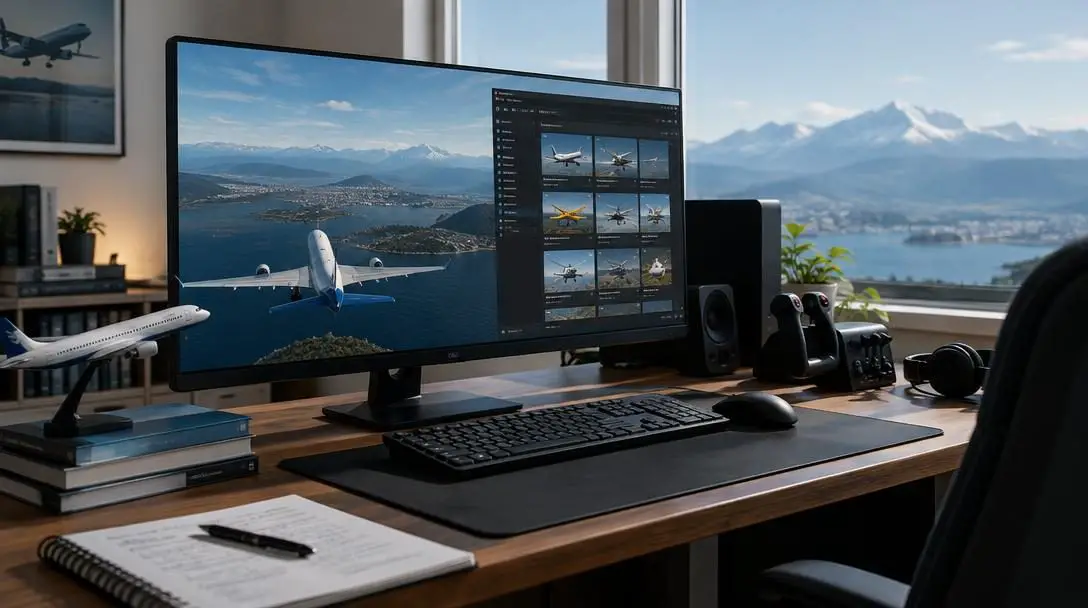
Microsoft Flight Simulator has provided aviation enthusiasts with an authentic taste of piloting for decades, continually evolving to mirror real-world aerodynamics, atmospheric weather, and intricate terrestrial geography. While the core software provides an impressive foundation straight out of the box, the true depth of the platform emerges through its active third-party and user-generated modification ecosystem.
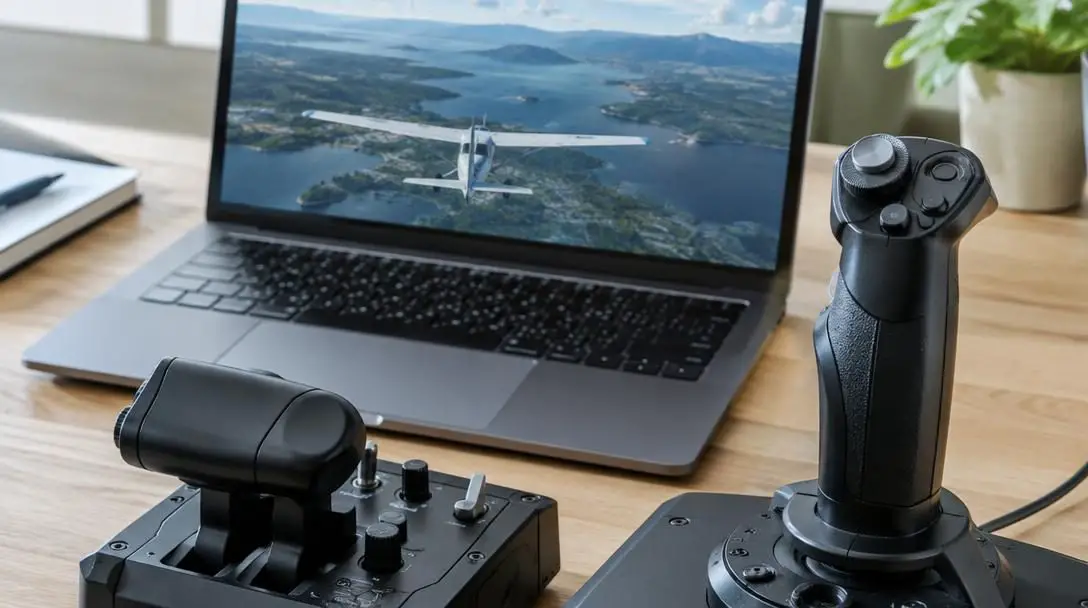
By bringing custom aircraft into the simulation, pilots can dramatically broaden their virtual hangars beyond default aircraft. Whether your goal is to pilot vintage military warbirds, navigate experimental gliders across mountain ranges, or take command of modern commercial airliners and general aviation cruisers, learning how to source and install add-ons unlocks the full potential of your home cockpit.
Key takeaways
- The simulator handles custom aircraft safely through a designated sandbox directory known as the Community folder.
- Add-on packages contain complex structural data, including 3D visual models, cockpit geometry, flight dynamics code, and sound files.
- Most user modifications arrive as compressed ZIP archives requiring manual extraction, while some complex models utilize automated EXE installers.
- Always download files from established, moderated repositories to protect your system from corrupted archives or broken code.
- Whenever core platform updates occur, you should verify that your community modifications remain compatible with the latest software build.
How Microsoft Flight Simulator add-ons work
To successfully integrate new airplanes into your game, it helps to understand how the platform processes external assets. An aircraft add-on in Microsoft Flight Simulator is far more than a simple visual skin. Each package represents an intricate web of interconnected systems and programmatic data that tell the game engine how an airplane should look, sound, and handle in varying flight conditions.
When you look inside a fully assembled aircraft mod, you will typically find high-resolution exterior textures, cockpit interior geometry, custom audio banks, engine performance parameters, and flight dynamics tuning tables. In addition to these raw assets, every working aircraft folder requires root configuration files, most notably manifest.json and layout.json. These catalog files instruct the simulator on which assets exist and how to index them during startup.
Because the Community folder acts as an isolated sandbox, it prevents players from accidentally overwriting or damaging the core game files.
The entire modification architecture revolves around the Community folder. Designed as a modular reception area, this folder allows the simulation engine to scan and mount external packages without altering the primary base files. When an aircraft sits inside this folder in the correct format, the game automatically populates it into your selection hangar. If an add-on malfunctions, removing its folder instantly restores your simulator to its clean, original configuration without necessitating a time-consuming software reinstall.
Trusted repositories for community aircraft
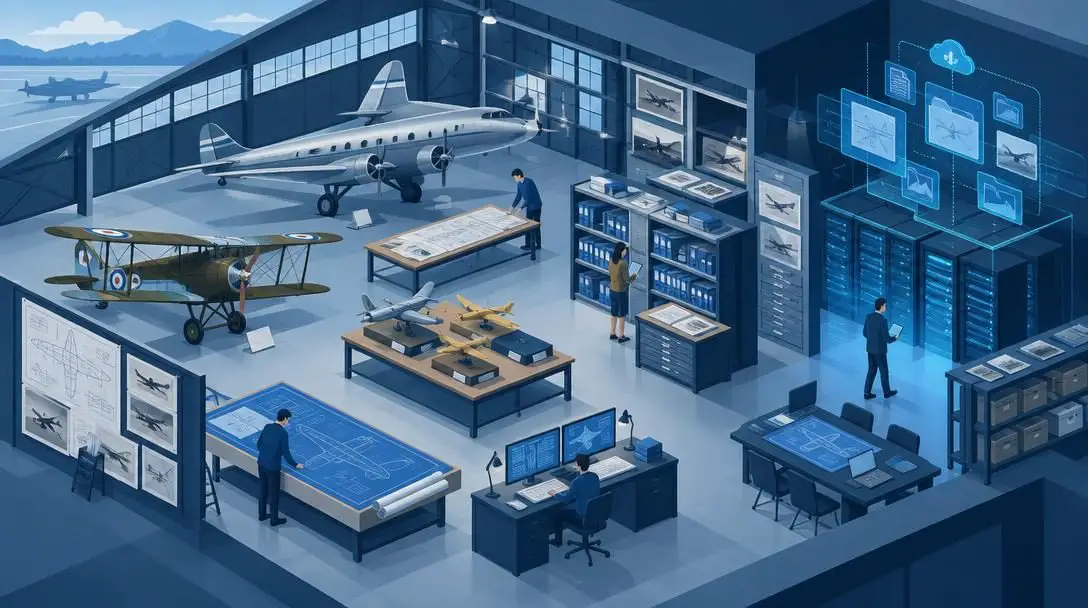
Before installing any files, virtual aviators must source their downloads from trustworthy digital libraries. Because add-ons execute inside your local system directories, relying on obscure or unverified sites introduces the risk of corrupted files, broken textures, or platform instability. The flight simulation community relies heavily on long-standing hubs supported by active forums and diligent moderation teams.
Simviation
- Platform Type: Flight simulation download portal
- Community Support: Active forums and moderated file libraries
- Content Offered: Free community-developed planes and custom add-ons
Simviation stands as one of the oldest and most recognized repositories in virtual aviation. It hosts thousands of community-crafted files, offering everything from classic historical aircraft to general aviation staples. The site organizes content clearly by simulator generation, allowing pilots to pinpoint planes engineered specifically for modern physics engines.
AVSIM

- Platform Type: Dedicated flight simulation community and file library
- Community Support: Extensive discussion forums and community feedback
- Content Offered: Freeware aircraft, repaints, and third-party utilities
AVSIM operates an extensive, highly regarded community forum coupled with a massive file library. It has served generations of virtual pilots as a technical resource, hub for real-world aviation discussion, and distribution platform for independent software developers. Uploads are routinely scrutinized by community feedback and administrative moderation.
Fly Away Simulation

- Platform Type: Flight simulation news, mod hosting, and resource center
- Community Support: User reviews, ratings, and active comment sections
- Content Offered: Free add-on aircraft, custom liveries, and payware showcases
Fly Away Simulation provides an expansive catalog of user modifications, detailed screenshots, and community ratings. Its library features an array of modern commercial transports, vintage military aircraft, and custom liveries, complete with user-submitted reviews that help players gauge the quality and stability of a package prior to download.
| Repository | Primary Focus | Community Validation | Distribution Model |
|---|---|---|---|
| Simviation | Freeware aircraft archives and utilities | Forum discussions and moderated uploads | Direct downloads across multiple sim versions |
| AVSIM | Technical flight sim discussion and broad file library | Long-standing community feedback and active boards | Account-based library access and developer uploads |
| Fly Away Simulation | Organized freeware catalogs and flight sim news | User ratings, comment sections, and reviews | Curated file hosting with clear installation details |
Locating the Community folder
Finding where your simulator stores custom content is an essential prerequisite to manual installation. The exact storage path depends on your storefront and drive selection, but standard locations exist for default installations on Windows.
For standard default installations, the Community folder typically resides along this path:
C:\Users\YOURUSERNAME\AppData\Local\Packages\Microsoft.FlightSimulator_8wekyb3d8bbwe\LocalCache\Packages\Community
When navigating to this directory, replace YOURUSERNAME with your actual Windows profile name. Because Windows hides the AppData folder by default to protect critical operating system data, you must enable the option to view hidden files and folders inside your file explorer settings before the directory becomes visible.
If you installed the game on a secondary solid-state drive or through a non-standard file directory, your Community folder will still be nested under the main custom installation path inside the Packages subfolder. Once located, pin the folder to your file manager's quick-access menu for straightforward future access.
Step-by-step installation methods
Depending on how the developer packaged the aircraft, you will encounter either a compressed archive or a standalone setup program. Both paths achieve the same result, but they require different handling during setup.
Method 1: Manual installation using a ZIP archive
Most community-created free add-ons are distributed in compressed formats such as ZIP files to save download bandwidth. Follow this workflow to unpack and place your aircraft correctly:
- Locate the downloaded ZIP file in your system download directory.
- Extract all files from the ZIP folder using your preferred file decompression software.
- Open the newly extracted folder and examine the internal contents to verify you see the root aircraft folder containing manifest.json, layout.json, and related asset subdirectories.
- Open your Microsoft Flight Simulator Community folder in a separate file window.
- Copy and paste the root aircraft folder directly into your Community folder.
Method 2: Automated installation using an executable (EXE)
Commercial add-ons and complex third-party aircraft frequently provide an automated setup wizard packaged as an executable file. Use these steps to guide the automated installer:
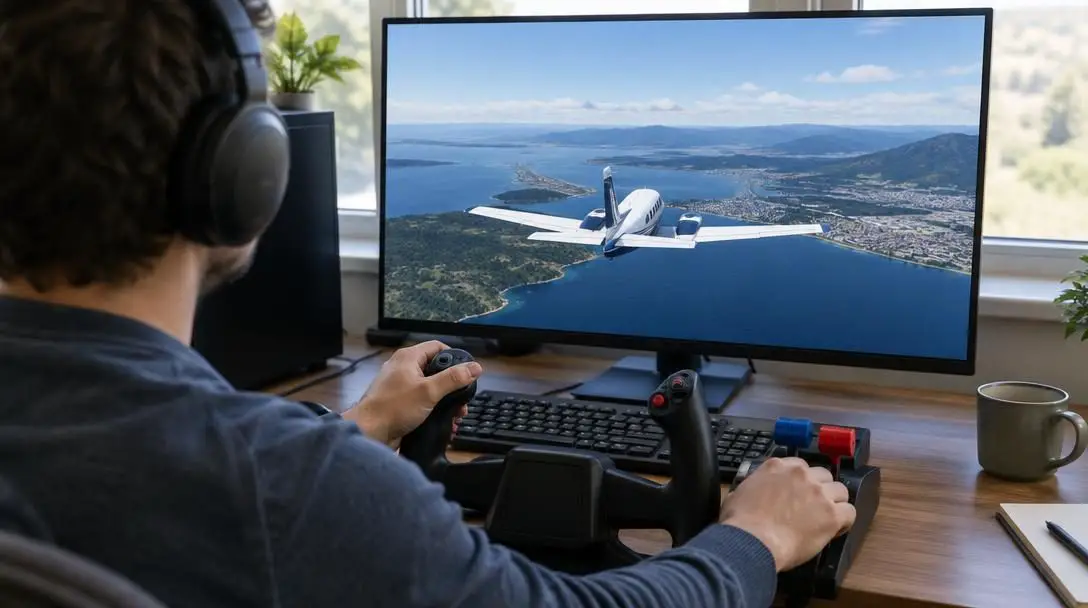
- Double-click the downloaded setup file to launch the installation utility.
- Follow any instructions provided by the installer, reading through prerequisites and license agreements.
- When prompted for the destination directory, verify that the installer points directly to your Microsoft Flight Simulator Community folder, adjusting the path manually if necessary.
- Complete the installation wizard and close the setup window before launching the game.
Selecting and flying your new aircraft
Once you have moved the necessary files into place, getting into the virtual sky requires only a few straightforward operational steps within the simulator interface.
- Launch Microsoft Flight Simulator. If the game was running while you copied the files, restart the software entirely so it can index the newly added folder.
- From the main menu, navigate toward the flight setup screen to create a new flight.
- Click on Aircraft Selection to view your available hangar.
- Scroll through the roster and select your newly installed plane from the menu list.
- Configure your departure airport, runway, weather settings, and time of day, then click the button to fly and spawn into the cockpit.
You can also personalize your aircraft visually by taking advantage of custom liveries. Many mod platforms host free paint schemes representing major international airlines, historic military squadrons, and private charter liveries. Because liveries function mechanically as standalone packages containing texture sheets and configuration files, you drop them straight into your Community folder using the exact same steps you use for complete aircraft.
Common pitfalls to avoid
While installing modifications is conceptually simple, minor organizational oversights can cause planes to vanish from your selection menu or crash the simulator on startup. Keep these common mistakes in mind during setup:
- Folder nesting errors: Many decompression programs generate an extra outer folder carrying the archive name when unzipping a file. If your aircraft package is buried two or three levels deep, the engine cannot scan its manifest.json file. The primary folder containing the manifest must sit directly inside the Community directory.
- Installing while the simulator is running: The software catalogs external add-ons only during its initial boot routine. If you extract a plane while sitting in the main menu, you must exit and restart the game before the aircraft appears in your hangar.
- Using unverified download sources: Sourcing files from suspicious web portals risks broken archives, incomplete texture directories, or malformed flight dynamics files that freeze the loading screen. Stick to recognized hubs like Simviation, AVSIM, and Fly Away Simulation.
- Ignoring read-me documents: Complex aircraft frequently rely on specific operating procedures or custom gauges. Skipping the included documentation can lead to non-functional avionics or dark cockpit displays once you enter the simulation.
- Directing EXE installers to the wrong path: Automated installers sometimes default to standard storage drives rather than custom secondary game drives. Always verify that an automated installer targets your true Community folder before confirming the installation.
Managing your virtual hangar over time
As your collection of virtual aircraft, regional liveries, and add-on utilities expands, managing your simulation folder becomes vital for maintaining stable game performance. A congested Community folder filled with abandoned experiments can increase boot times and complicate troubleshooting.
Keep a disciplined archive of all original ZIP downloads on an external drive or a separate backup folder on your PC. If you need to troubleshoot game stability, you can safely empty your Community folder, test the base simulator, and reintroduce your favorite planes one at a time from your local archive without redownloading them.
Furthermore, pay close attention to official simulator updates. Microsoft Flight Simulator regularly issues platform patches and major world updates that alter core programming and rendering routines. When core mechanics change, older community-created aircraft may occasionally exhibit visual bugs, malfunctioning cockpit instruments, or balance issues. Whenever an update disrupts a plane's behavior, check the repository where you originally obtained the mod to download an updated version adapted for the new patch.
Frequently asked questions
Why is my new aircraft not showing up in the selection menu?
The most common cause is improper folder nesting during ZIP extraction. Ensure that the primary aircraft folder containing the manifest.json and layout.json files sits directly inside the Community folder rather than inside a duplicate subfolder. Additionally, ensure you restarted the simulator after installing the files.
Can custom aircraft damage my original game installation?
No, because the Community folder operates as an isolated sandbox. The simulator reads these external files dynamically without overwriting core game files. If an aircraft causes freezes or crashes, simply deleting that plane's folder from the Community directory restores your simulator to normal.
Do I install aircraft liveries the same way as full aircraft?
Yes. Custom liveries for planes like the Airbus A320 or Boeing 747 are packaged with their own manifest files and texture subfolders. They are installed by extracting or copying their root folder directly into your Community directory.
How do I find the Community folder if AppData is missing?
The AppData folder is hidden by default in the Windows operating system. To reveal it, open your Windows file explorer, select the view options, and enable the setting that shows hidden files, folders, and drives.
Do I have to pay for aircraft add-ons?
Not necessarily. While many advanced third-party design studios offer premium commercial aircraft, platforms like Simviation, AVSIM, and Fly Away Simulation host extensive libraries of free community-developed aircraft and liveries.
The bottom line
Expanding your virtual hangar with custom aircraft add-ons is one of the most rewarding ways to personalize Microsoft Flight Simulator. By taking advantage of the simulator's built-in sandbox architecture, you can pilot everything from historical gliders to modern commercial jetliners with complete safety for your core game files. As long as you source packages from reputable communities, watch out for nested folders, and keep your files organized, building a custom fleet is a simple and seamless process. Choose your favorite aircraft, set your departure point, and enjoy exploring the world from a brand-new cockpit.