How To Choose The Best Laptop For You
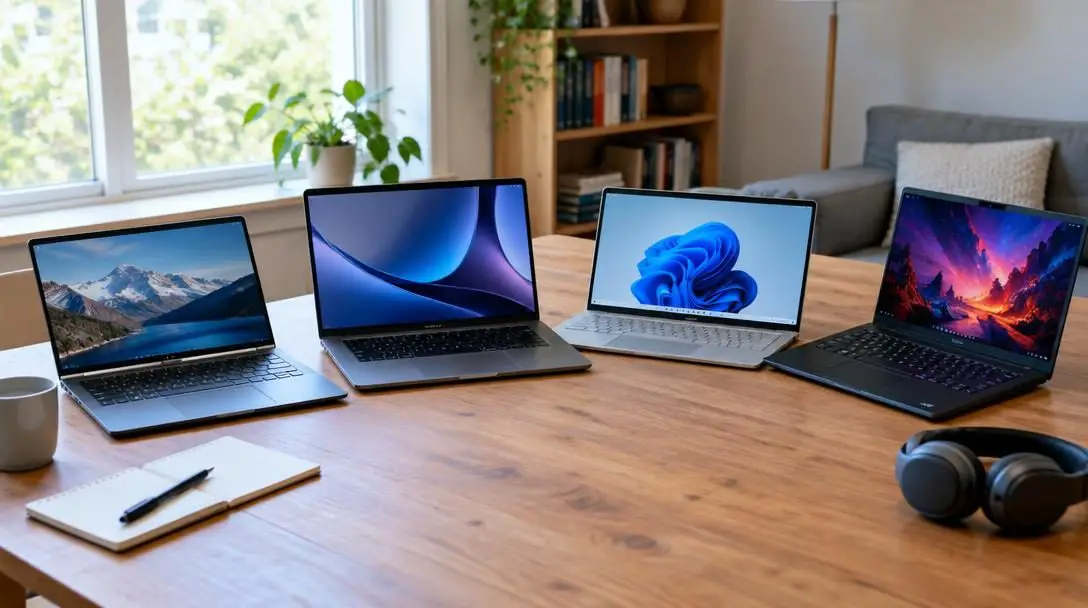
Shopping for a new laptop computer requires a clear evaluation of your personal needs, everyday computing habits, and long-term goals. The retail laptop market is filled with an enormous variety of hardware configurations, ranging from ultra-portable devices intended purely for basic web browsing to heavy-duty computing machines capable of intensive office work, heavy typing, and storing extensive media libraries. Without taking the time to define what you genuinely need from a machine, navigating technical terminology, spec sheets, and promotional marketing can quickly become overwhelming.
Selecting the best laptop is not about tracking down the most expensive or fastest computer on the market. Instead, it is about aligning physical ergonomics, operating system software, processing speed, and digital storage space with your routine. Taking a structured, informed approach ensures that you avoid paying for features you do not need while securing a reliable, comfortable laptop that fits within your financial reach.
Key takeaways
- Establishing a strict budget before shopping prevents you from overspending on processing power and features you will never use.
- Your operating system determines daily software access, making Windows and Mac OS the necessary options if you rely on standard Office productivity tools.
- Screen dimensions directly dictate the physical footprint of the laptop, the available typing space for your fingers, and overall carrying weight.
- Hardware performance relies on balancing multitasking speed through installed RAM against file storage capacity measured in gigabytes and terabytes.
Evaluating the Four Major Operating Systems
The operating system serves as the foundational software environment of your computer, establishing the user interface and dictating which software programs you can install and operate. Operating systems on contemporary laptops fall into four distinct categories: Windows, Mac OS, Chrome OS, and Linux. Selecting the correct platform depends heavily on your professional software needs, your personal comfort with technical setups, and your spending limit.
Windows

- Market Segment: Budget-friendly to mid-range systems
- Software Support: Comprehensive compatibility with standard software
- Productivity Capability: Full support for standard Office tools
Windows remains the traditional operating system found across a vast portion of personal computers today. Because it is deployed across machines manufactured by diverse brands, Windows is readily available in budget-friendly and mid-range tiers, making it accessible to cost-conscious buyers. It provides widespread software compatibility throughout the computing industry. Most importantly, Windows is an essential platform to choose if your daily routine requires standard Office tools, such as word processing programs, Excel spreadsheets, and connected office workflows.
Mac OS

- Hardware Integration: Designed specifically for Apple computers
- Software Support: Broad industry support and office integration
- Productivity Capability: Native compatibility with standard Office tools
Mac OS is engineered exclusively for Apple hardware, creating a tightly unified hardware and software ecosystem. Alongside Windows, Mac OS represents the primary choice for users who depend on professional Office tools, including advanced word processing, Excel spreadsheets, and related business productivity suites. While Mac OS machines sit at higher price points, they provide a polished, stable operating environment for productivity and creative tasks.
Chrome OS

- Core Architecture: Optimized specifically for web browsing
- Power Profile: Lower power hardware demands
- Productivity Capability: Limited software access; does not always run standard Office tools
Chrome OS is a streamlined platform optimized primarily for web-based applications. While it offers a responsive experience for browsing websites, it is not ideal for power users due to its lower processing power and restricted access to desktop programs. Buyers should note that Chrome OS does not always allow the installation or execution of standard Office tools for spreadsheets and complex document editing, making it suitable mainly for lightweight web tasks.
Linux

- Platform Profile: Alternative open-source environment
- Software Ecosystem: Employs non-traditional alternative programs
- Productivity Capability: Steep learning curve; does not always support standard Office suites
Linux is an alternative operating system favoured by technical enthusiasts and programmers who prefer open-source environments. However, everyday users should anticipate a noticeable learning curve due to distinct differences in the software programs used by Linux laptops. Similar to Chrome OS, Linux does not always allow you to use standard Office tools, requiring users to rely on alternative tools or manual software configurations.
Operating System Comparison
Understanding how each operating platform handles productivity software, hardware costs, and day-to-day usability helps narrow your purchasing focus quickly.
| Operating System | Primary Focus | Standard Office Support | Typical Pricing Tier |
|---|---|---|---|
| Windows | Broad general computing and office productivity | Full support for standard tools | Budget-friendly to mid-range |
| Mac OS | Integrated productivity and creative workflows | Full support for standard tools | Mid-range to premium |
| Chrome OS | Web browsing and web-based applications | Limited or restricted support | Budget-friendly |
| Linux | Alternative computing with varied programs | Limited or restricted support | Varies by hardware installation |
Balancing Screen Dimensions, Ergonomics, and Portability
The physical dimensions of a laptop affect far more than visual display area; they directly govern the keyboard layout, typing comfort, and portability. The physical diagonal size of the screen indicates the general footprint of the chassis. Because the keyboard is designed to match the basic size of the screen, opting for a smaller or larger display radically shifts how your hands interact with the computer.
A laptop featuring a 12 inch screen offers an ultra-compact size that fits effortlessly into backpacks, shoulder bags, and briefcases. However, the smaller chassis constricts the keyboard surface, meaning your fingers will have less room to manoeuvre. If your workflow involves heavy typing, such as drafting extended reports or managing large datasets, working on a cramped layout can cause physical strain.
Conversely, selecting a 15 or 16 inch screen size expands the keyboard deck, providing far more space for your fingers to rest and type naturally. The broader surface reduces typos and hand fatigue during long typing sessions. The tradeoff for this ergonomic comfort is physical bulk. Because the weight of a laptop increases proportionally with the size of the computer, larger models are heavier to transport and take up significantly more desk space.
As a general rule, laptops get more costly as you increase the speed, size, and function.
Understanding Memory and Storage Hardware
Behind the display and keyboard, internal components dictate how fast a machine executes tasks and how much digital media it can hold locally.
The RAM on your laptop refers directly to the operational speed and multitasking agility of the machine. Higher RAM allows the computer to juggle multiple active applications, keep dozens of browser tabs open, and stream multimedia content smoothly without freezing or stalling. When checking hardware specifications, you may encounter two separate memory figures: the base RAM that comes installed on the computer out of the box, and the maximum RAM that the computer can support if upgraded at a later date.
Storage capacity dictates your ability to retain personal and professional files without relying on external drives. Storage space is measured in gigabytes, commonly referred to as gigs. For users with basic needs, a standard allocation of gigs is sufficient for holding essential documents. However, if your work requires saving expansive media collections—such as high-resolution images, videos, and large archives—look for machines equipped with terabytes. A terabyte provides 1000 gigabytes of space, ensuring that you have abundant local room for digital assets.
A Step-by-Step Guide to Choosing the Best Laptop
Following a structured evaluation prevents you from getting lost in hardware options and marketing claims. Use this sequential process to identify the right model for your specific goals.
- Set Your Budget: Determine an exact spending ceiling before looking at available models to ensure you avoid overspending on features you do not need.
- Identify Your Necessary Operating System: Confirm the software tools you use daily; select Windows or Mac OS if you require standard Office applications, Chrome OS for pure web browsing, or Linux if you can manage alternative software.
- Select Your Screen Size and Form Factor: Pick a 12 inch display for compact travel portability, or upgrade to a 15 or 16 inch screen to secure adequate finger space for heavy typing.
- Evaluate RAM Requirements for Multi-Tasking: Check the installed memory figure to guarantee fluid streaming and application switching, while noting maximum expandable RAM limits.
- Assess Storage Needs in Gigs and Terabytes: Estimate your file footprint to decide if standard gigabyte capacity is adequate or if storing large image and video libraries warrants moving up to terabytes.
- Compare Final Contenders Within Your Price Range: Place surviving candidates side-by-side to find the laptop that delivers the best combination of display ergonomics, storage capacity, and processing speed within your budget.
Common Shopping Pitfalls to Avoid
Many buyers encounter regret by overlooking fundamental technical limitations or purchasing hardware based on appearance rather than utility. Guard your purchase by avoiding these widespread errors:
- Browsing Before Setting a Budget: Reviewing premium, fully loaded computers before determining your financial parameters leads to unrealistic expectations and severe budget creep.
- Buying the Wrong Operating System for Office Tools: Assuming Chrome OS or Linux will handle word processing and Excel spreadsheets in the same manner as Windows or Mac OS leads to workflow disruptions.
- Ignoring Alternative System Learning Curves: Transitioning to Linux without preparing for the operational differences of its software programs can create needless daily frustration.
- Overlooking Keyboard Ergonomics: Purchasing a compact 12 inch model purely for portability without realizing the keyboard may be too cramped for comfortable, long-term typing.
- Disregarding Laptop Carrying Weight: Selecting a 15 or 16 inch display for the spacious keyboard while forgetting that larger computers add substantial physical weight to travel bags.
- Confusing Included RAM with Supported RAM: Reading the maximum supported memory specification instead of the base RAM included out of the box, leaving you with an underpowered machine.
- Underestimating Long-Term Storage: Choosing too few gigabytes when your workflow involves saving extensive image, video, or data archives that require terabytes of capacity.
Post-Purchase Setup and Workflow Transition
Once your new laptop arrives, executing a systematic setup routine ensures that your hardware and software operate exactly as planned.
Start by verifying your essential software applications immediately. If you selected Windows or Mac OS to manage spreadsheets and word processing, install your productivity software and test your existing files to verify layout formatting and compatibility. If you opted for Chrome OS or Linux, dedicate initial time to configuring your web extensions or learning the nuances of the platform's alternative software programs.
Next, evaluate the ergonomic comfort of your working environment. If you purchased a 15 or 16 inch laptop, organize your desk space to take advantage of the wider finger space on the keyboard. For 12 inch laptops, test the machine inside your regular travel bags to ensure seamless portability, and spend time typing to adapt your hand positioning to the smaller chassis layout.
Finally, monitor your system resources during peak multitasking. Pay attention to how your active applications and streaming media consume memory, keeping in mind the laptop's maximum supported RAM if you need an upgrade later. Regularly track your available storage gigs as you migrate documents, photos, and video collections to ensure your storage drive maintains plenty of free capacity.
Frequently asked questions
Can I run standard Office productivity tools on Chrome OS or Linux?
Chrome OS and Linux do not always allow you to use standard Office tools for spreadsheets or document editing. If your regular workflow demands complete compatibility with traditional office suites, you should choose a laptop running Windows or Mac OS.
Why do technical specifications sometimes show two different numbers for RAM?
Laptop specification sheets frequently list the base RAM that comes installed in the computer out of the box alongside a secondary number indicating the total amount of RAM the computer can support if you upgrade the memory later.
How does screen size affect the comfort of typing on a laptop keyboard?
Because the keyboard chassis is roughly the same basic size as the screen, a 15 or 16 inch screen provides more space for your fingers to rest and type naturally. Conversely, a 12 inch screen results in a more compact keyboard that may feel cramped during heavy typing sessions.
What is the difference between gigabytes and terabytes of storage?
Gigabytes, or gigs, represent the primary unit of storage capacity for saving your personal files. Terabytes provide 1000 gigabytes of space, offering significantly greater capacity for users who need to store extensive collections of videos, images, and large work archives.
Why is it critical to establish a strict budget before looking at laptop models?
Laptops naturally become more costly as you increase their speed, size, and functionality. Clarifying your spending limit first keeps you focused on viable candidates and prevents you from overspending on hardware features you do not need.
The Bottom Line
Selecting the ideal laptop computer is an exercise in balancing your everyday productivity requirements against physical comfort, operating system compatibility, and overall cost. By understanding how the operating system dictates software tools, how screen dimensions govern typing ergonomics, and how RAM and storage dictate performance, you can shop with complete confidence. Establishing your financial boundaries and reviewing hardware specifications carefully guarantees a computer that handles your daily tasks comfortably and reliably for years to come.