
Want to Keep Your Computer Working Perfectly? Here are the Regular Maintenance Best Practices You Should Be Aware Of

A widespread assumption among computer users is that a machine begins its inevitable decline toward obsolescence the moment it is removed from the box and powered on. While consumer technology moves at a dizzying pace and six-month-old hardware may no longer reflect the bleeding edge of engineering, an older computer is far from ready for the scrap heap. Machines do not inherently slow down because of an arbitrary expiration date; rather, they struggle when system demands outpace existing software efficiency and hardware capacity.
Keeping a computer running reliably over the long haul does not require specialized technical credentials or a degree in computer engineering. By understanding how system software, temporary memory, and long-term storage interact, you can establish an effective maintenance routine. Combining routine software upkeep with targeted, cost-effective physical upgrades enables you to preserve everyday responsiveness, eliminate computing frustration, and dramatically extend the lifespan of your initial investment.
Key takeaways
- Operating system updates deliver vital code optimizations and security patches that enhance system efficiency over time.
- Upgrading modular components like system memory and storage drives provides an immediate speed boost without the extreme expense of replacing a motherboard.
- Upgrading an entry-level 4GB RAM configuration to 8GB or 16GB prevents aggressive storage swapping and protects multi-year responsiveness.
- Replacing a mechanical hard disk drive with a flash-based solid state drive eliminates mechanical latency across daily tasks.
- Creating an external backup before performing storage upgrades safeguards essential personal files from catastrophic data loss.
Understanding Why Computers Slow Down Over Time
The perception that personal computers suffer from rapid decay often stems from the relentless release cycles of modern consumer electronics. Every year, manufacturers introduce microprocessors with higher clock speeds, updated graphics chipsets, and expanded storage architectures. In response, modern operating systems and third-party software developers construct increasingly sophisticated programs designed to exploit those newer capabilities. As applications grow larger, incorporate background services, and demand higher operational throughput, older hardware configurations can begin to feel noticeably sluggish.
However, an operational slowdown rarely means that physical circuitry has failed or reached the end of its functional life. Instead, performance degradation is almost always the result of predictable system bottlenecks. These logjams occur when an operating system runs outdated software, background programs waste system resources, or physical memory and storage media cannot keep up with data requests from the central processor. By diagnosing and addressing these bottlenecks systematically, you can reverse sluggish behavior and keep an existing computer operating at peak efficiency.
The Foundations of Software Maintenance
Software hygiene represents the front line of computer preservation. The programs installed on your system dictate how smoothly the hardware communicates with peripheral devices, manages system processes, and allocates working memory. Without consistent attention to software health, even powerful hardware components can stumble under the weight of unresolved bugs and unoptimized code.
Operating System Updates
Downloading and applying operating system updates is by far one of the most critical maintenance habits you can adopt. Many users treat update notifications as a minor inconvenience and postpone installations for weeks or months. This delay is counterproductive. Beyond providing essential patches for emerging security vulnerabilities, system updates frequently include vital refinements to underlying code. These efficiency adjustments help the operating system manage hardware resources more smoothly, allowing your machine to run more efficiently as the software matures.
Locating and installing these updates takes only a few moments regardless of your platform:
- macOS: Open the System Preferences menu and select the Software Updates button to scan for, download, and install available system improvements.
- Windows: Open the Control Panel, navigate to the system update options, and allow the system to download and install all recommended patches.
Whenever an update finishes installing, permit the device to restart completely. Rebooting ensures that all updated system files replace older versions in active memory and initialize properly.
Application Upgrades
Maintaining the operating system is only half the battle; the everyday applications you rely on require equal diligence. Software creators regularly publish patches designed to squash bugs, fix memory leaks, and refine application code so that programs execute tasks without monopolizing system resources. Make it a habit to check for updates within your critical applications, web browsers, and productivity suites. Running up-to-date versions prevents software crashes and minimizes unnecessary background resource consumption.
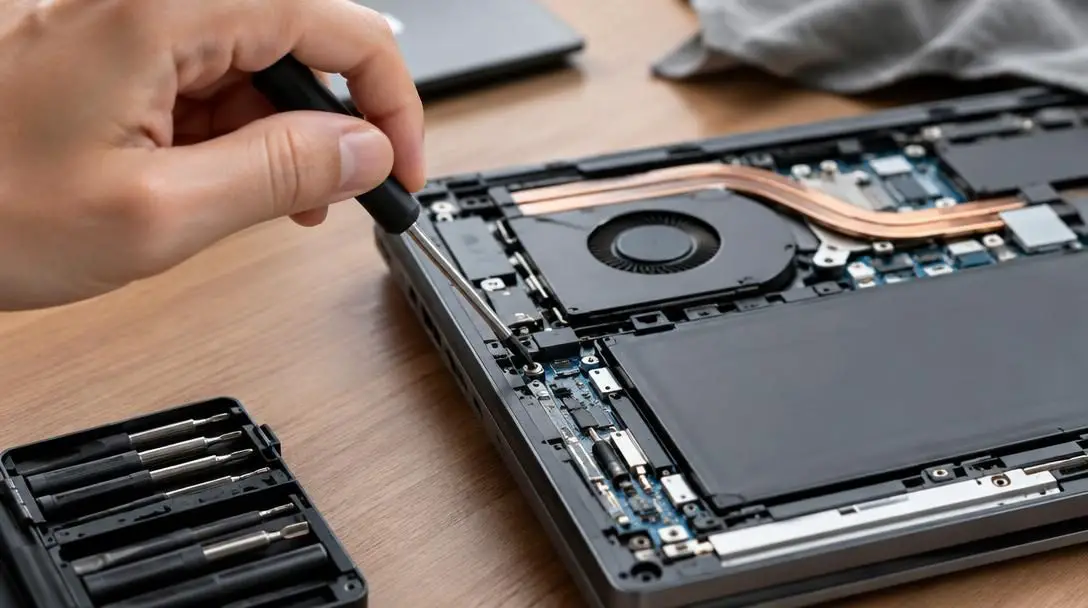
By spending a few hundred dollars on modular components like RAM or a solid state drive, you can give an aging machine an immediate performance boost without purchasing a brand-new system.
Strategic Hardware Upgrades That Deliver Real Speed
When software optimization alone fails to restore acceptable responsiveness, hardware enhancements offer a dramatic path forward. While some internal hardware components cannot be swapped without dismantling the entire machine, modular parts can be upgraded quickly and affordably at home.
Random-Access Memory (RAM)
Random-access memory acts as your computer's short-term working memory. It stores active files for your operating system, running applications, and open browser tabs so the central processing unit can access them near-instantaneously. If your computer exhausts its available RAM, it is forced to swap temporary operational data onto your main storage drive. Because storage media operates significantly slower than dedicated memory chips, this swapping process creates severe system lag.
Upgrading your memory eliminates this bottleneck. If your machine arrived from the factory with a baseline configuration of 4GB of RAM, upgrading to at least 8GB will yield immediate improvements in system fluidity. Pushing your machine to 16GB provides substantial operational headroom, ensuring you will not have to worry about memory constraints for years to come. Installing RAM modules is straightforward: by spending a few hundred dollars, you can purchase compatible sticks, open the access panel, release the retaining clips, and seat the new modules firmly into place.
Solid State Drives (SSDs)
The type of long-term storage installed inside your computer plays an enormous role in overall responsiveness. Traditional mechanical hard disk drives (HDDs) rely on physical platters spinning at high speeds and mechanical actuator arms that read and write data magnetically. This physical movement introduces unavoidable mechanical latency whenever you boot your system, launch an application, or open a large file.

Replacing an aging mechanical hard drive with a flash-based solid state drive eliminates mechanical delay entirely. Solid state storage contains no moving parts, reading and writing data electronically across silicon memory cells. Swapping an HDD for an SSD provides an instant performance leap, allowing older machines to boot in seconds and making demanding, resource-heavy applications feel snappy and responsive.
| Memory Configuration | Suitability | Performance Impact | Recommended Action |
|---|---|---|---|
| 4GB RAM | Basic single-task usage | Frequent data swapping to storage, noticeable system lag under modern web workloads | Upgrade to at least 8GB immediately |
| 8GB RAM | Everyday multitasking | Stable baseline responsiveness for general computing, media playback, and office tools | Maintain software updates; upgrade to 16GB if heavy multitasking slows the system |
| 16GB RAM | Demanding workflows | Exceptional headroom for resource-heavy applications without swapping delays | Optimal long-term capacity; no hardware upgrades needed for years |
Step-by-Step Computer Upgrade and Maintenance Workflow
To safely upgrade and optimize your personal computer, follow a structured sequence that protects your data while maximizing operational gains. Rushing into hardware installations without proper preparation increases the risk of part incompatibility and data loss.
- Audit your current hardware and software: Review your installed operating system version, current memory capacity, and storage drive type. Note the exact model number of your computer.
- Check hardware compatibility: Use your computer's model number to search online for compatible RAM module types, operating frequencies, and drive form factors before making any purchases.
- Execute a comprehensive data backup: Prior to opening your machine or modifying storage drives, back up all personal files, documents, and essential application data to an external storage drive or safe repository.
- Install the new solid state drive: Open the chassis, disconnect the mechanical hard drive, and secure the flash-based SSD. Transfer your saved system image or perform a clean installation of the operating system.
- Seat the upgraded memory modules: Locate the memory slots on the motherboard, release the side retaining clips, remove the old sticks if necessary, and press the new RAM firmly into position until the clips snap shut.
- Apply all outstanding system and application updates: Boot the computer, open System Preferences on macOS or Control Panel on Windows, install all pending software updates, and reboot the system.
Common Maintenance Mistakes to Avoid
Even conscientious computer owners frequently make missteps that compromise performance or cause unforced hardware headaches. Keeping an eye out for these frequent mistakes will save you time, money, and frustration.
- Postponing operating system updates: Delaying updates because of the brief restart time required leaves your machine exposed to known security vulnerabilities and deprives the system of crucial performance-enhancing code patches.
- Purchasing incompatible memory sticks: RAM is not a one-size-fits-all component. Modules vary by physical pin count, memory generation, and operating voltage. Buying memory without checking your machine's model number online can leave you with parts that will not physically seat or boot.
- Attempting unnecessary motherboard replacements: Trying to upgrade a motherboard is essentially equivalent to building a brand-new computer from scratch. It creates unnecessary expense and complexity when modular components like RAM and solid state drives solve the vast majority of performance issues.
- Swapping storage without backups: Removing a primary storage drive without backing up its contents invites irreversible data loss if files are corrupted or the original drive suffers physical damage during handling.
- Expecting software tweaks to solve hardware deficits: No amount of software cleanup, cache clearing, or operating system updating can compensate for an acute physical memory shortage. If your computer is constrained by 4GB of RAM, installing additional hardware is the only viable remedy.
Frequently asked questions
How much RAM does my computer actually need to run smoothly?
If your computer currently runs on 4GB of RAM, you should upgrade to at least 8GB for everyday tasks. Upgrading to 16GB provides substantial headroom, ensuring that resource-intensive programs run fluidly and that you will not have to think about upgrading your memory again for years to come.
Where do I check for operating system updates on Windows and Mac?
On a Mac, open the System Preferences menu and click the Software Updates button to review and install patches. On a Windows computer, open the Control Panel to locate the operating system update options and initiate pending downloads.
Why is replacing a mechanical hard drive with an SSD so effective?
Traditional mechanical hard drives rely on spinning platters and moving read-and-write arms, which introduce physical latency when reading data. Solid state drives use flash memory with no moving parts, delivering an instant performance boost that accelerates boot times, file transfers, and program launches.
Is it worth upgrading my computer's motherboard to improve speed?
No. Upgrading a motherboard is essentially equivalent to building a new computer from scratch. It is an unnecessary and costly effort when modular upgrades, such as adding RAM or installing an SSD, provide an immediate speed boost for a fraction of the cost.
What should I do before replacing my internal hard drive?
You must perform a complete backup of the contents of your old hard drive before making any changes. Backing up ensures that critical documents, photos, and system files remain safe and recoverable during the drive swap.
The bottom line
The belief that computers must decline into unusable relics within a few years of purchase is a misconception. While hardware standards continue to advance, proactive maintenance allows modern computers to remain productive, fast, and dependable for years. By maintaining strict software discipline through prompt operating system and application updates, you ensure that your computer's code remains secure and efficient.
When physical limitations emerge, targeted upgrades to modular components like system RAM and solid state storage breathe new life into older machines. Upgrading from 4GB to 8GB or 16GB of memory stops sluggish drive swapping, while replacing a mechanical hard drive with a flash-based SSD eliminates mechanical lag across every application you open. Combined with regular data backups, these straightforward habits will protect your digital life, save you hundreds of dollars in unnecessary replacement costs, and keep your computer working perfectly.