5 Best Hacks For Your iPhone
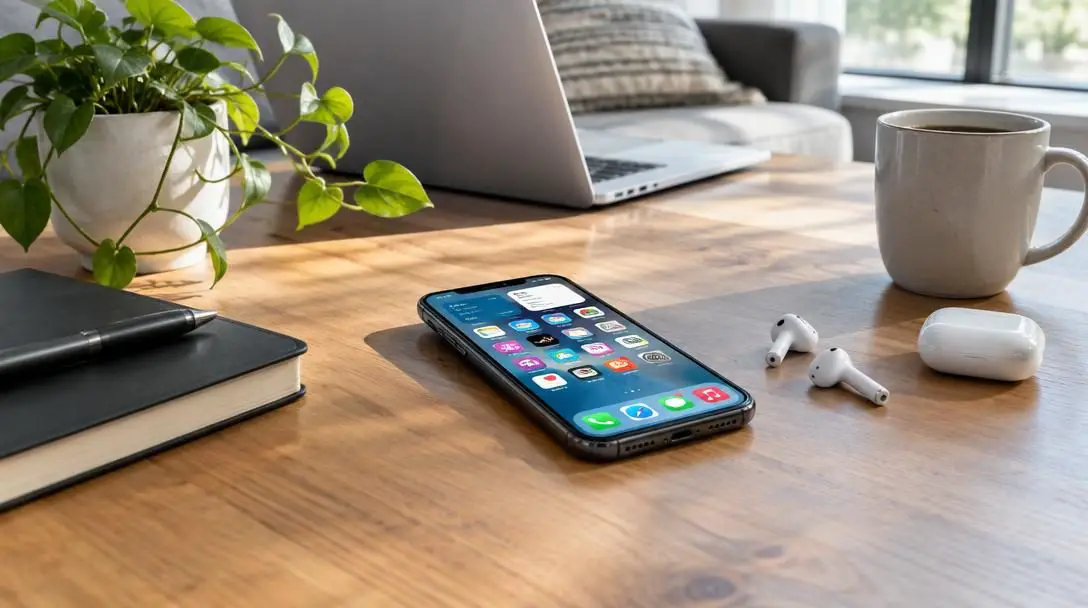
The iPhone remains the most common smartphone in use worldwide, packed with capabilities that have expanded steadily since the platform first launched. Even with millions of people using these devices daily, a vast number of built-in functions remain virtually unknown. Because the full catalog of native utilities is simply too expansive to detail in an ordinary setup guide, most people tap into only a small slice of what their hardware and operating software can accomplish.
Exploring existing system tools lets you streamline everyday routines, protect your personal privacy, and automate audio and alert settings without spending extra money. Instead of loading your device with third-party software that requires recurring subscriptions or clutters your screen with advertisements, you can rely on the native tools already built into your operating system. Learning how to configure these overlooked shortcuts unlocks the full power of your phone right out of the box.
Key takeaways
- Guided Access lets you freeze your touchscreen completely while keeping the display active, protecting your device from curious children or nosy viewers.
- The built-in Measure app uses your camera and motion sensors to determine physical dimensions and verify whether household surfaces are level.
- Screen recording features a hidden audio toggle that activates the external microphone, enabling live voiceover narration during screen captures.
- Setting your native countdown timer to stop playing media automatically pauses background videos, music, and podcasts without sounding an alarm.
- Focus automations introduced in modern software updates let you turn Do Not Disturb on and off based on exact times and venue locations.
At a glance: Five native tools and settings
Your smartphone includes specialized utilities across several system menus, ranging from accessibility controls to built-in measurement tools. The table below outlines how each feature operates, what requirements exist, and the primary benefit delivered to your daily workflow.
tbody| Feature | Primary function | Key requirement | Main benefit |
|---|---|---|---|
| Guided Access | Locks phone to one app and freezes touch input | Home button triple-press toggle | Prevents unwanted tapping and browsing |
| Measure App | Calculates dimensions and surface levelness | iOS 12 or later and working camera | Eliminates need for physical tape measures |
| Screen Recording Voiceover | Captures display action and spoken audio together | Control Center microphone activation | Creates instructional walkthroughs quickly |
| Playback Sleep Timer | Pauses audio and video automatically at zero | Clock app "Stop Playing" parameter | Saves device battery and avoids startled waking |
| Automated Do Not Disturb | Suppresses notifications by place or schedule | iOS 15 or later with location enabled | Prevents disruption in theaters and quiet venues |
Five built-in iPhone shortcuts to upgrade your routine
Guided Access
- Category: Accessibility and privacy setting
- Exit command: Triple-press the home button
- Core protection: Touchscreen deactivation and app lock
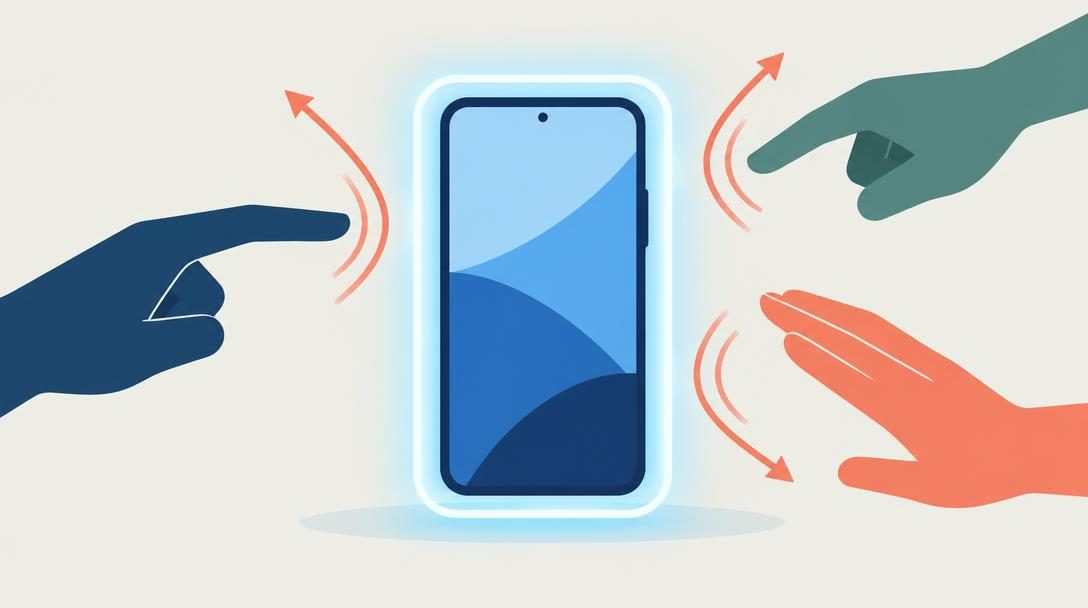
One remarkably practical capability on your phone allows you to freeze the touchscreen function entirely while keeping the current screen visible. Originally developed as an accessibility utility, Guided Access restricts the smartphone to a single active program. When you engage this mode, the system intercepts physical touch gestures before they register, transforming your interactive glass display into a read-only viewer.
This setting offers vital protection in common social situations. It is particularly useful for parents dealing with young children who instinctively swipe through displays or mash physical buttons. Similarly, if you want to show a photograph or ticket confirmation to a nosy person, locking the touch surface prevents them from swiping over to view your photo gallery or reading private notifications.
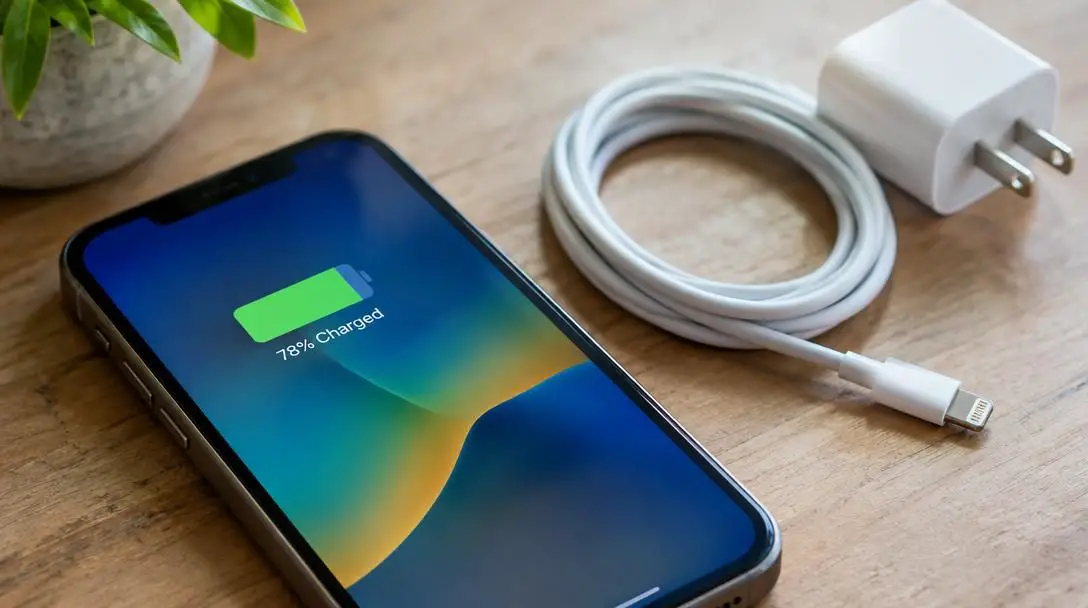
- Launch the specific application, document, or photo you want to display on screen.
- Ensure Guided Access is enabled within your device settings menu so the shortcut is available.
- Activate the mode to freeze all touch responsiveness while keeping the image on display.
- Press the home button three times in a row when you are ready to shut off the feature.
Measure App
- Minimum system: iOS 12 and later
- Hardware utilized: Camera and internal motion-sensing hardware
- Primary capabilities: Spatial dimensions and surface leveling
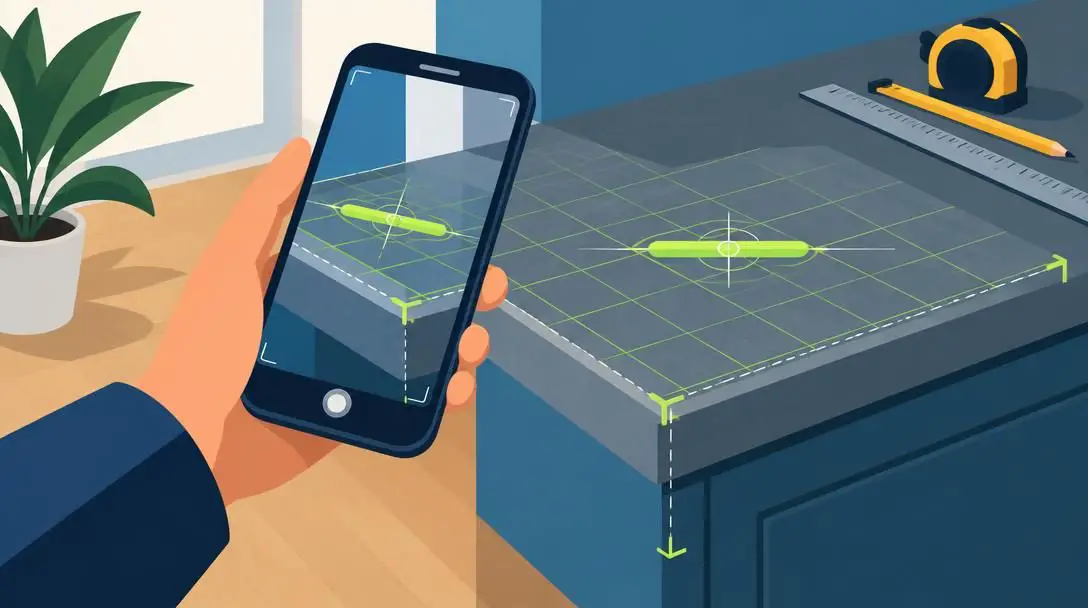
Rather than rummaging through household drawers for a physical tape measure or bubble level, you can turn your smartphone into a digital measuring kit. The Measure app comes pre-installed on devices running iOS 12 and subsequent software versions, giving you an immediate tool to inspect physical objects without separate hardware.
The app analyzes spatial points captured by the camera, calculating the height, width, and surface area of objects by establishing distances between surrounding items. Alongside spatial measurement, the software includes a dedicated leveling screen that relies on the internal motion-sensing hardware to determine if a surface is horizontally or vertically level.
- Check if your phone needs any operating system updates by visiting Settings, tapping General, opening Software Update, and updating if needed.
- Open the pre-installed Measure app from your home screen or application library.
- Pan the camera slowly across the target area so the device registers the surrounding space.
- Position the on-screen target at the starting edge, mark your point, and sweep along the object's height or width.
- Read the calculated measurements, or switch to the leveling tab to determine if a surface is level.
- Avoid moving the camera too rapidly across surfaces, as fast sweeps interrupt the software's ability to figure out surrounding distances.
- Ensure adequate ambient lighting, as dim conditions make it difficult for the camera lens to track physical edges.
- Keep software updated to maintain compatibility with modern spatial calculation tools.
Screen Recording with Voiceover
- Access point: Device Control Center
- Audio source: Built-in microphone hardware
- Primary use: Instructional and how-to video captures
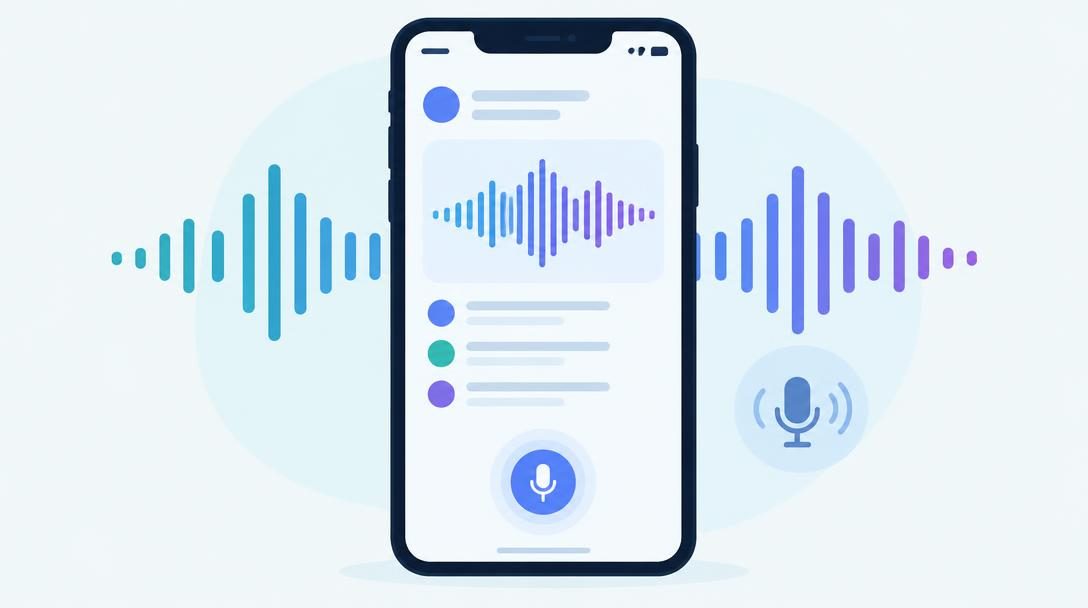
While screen recording is widely known, many users are unaware that they can simultaneously narrate their on-screen actions. This technique proves invaluable when assembling a walkthrough or instructional how-to guide, letting you create clear demonstrations without needing external video editing tools.
The system brings together two distinct recording streams: internal frame capture from your active display and acoustic input from the device microphone. Instead of limiting the finished clip to system chimes or silent video, the phone merges your spoken commentary directly with on-screen taps and scrolls into a single file.
Recording your voice while capturing the display creates clear instructional walkthroughs directly on your smartphone.
- Swipe into the Control Center on your device.
- Press the screen record button for longer than you normally would to launch the recording menu.
- Choose the video or application you wish to record.
- Press the microphone button positioned beneath the options list to record your voice.
- Press start recording to record your screen and voice simultaneously, speaking clearly as you complete your tasks.
- Tap the stop recording option once your demonstration is finished.
Audio Playback Sleep Timer
- Native tool: Clock application
- Action parameter: Stop Playing command
- Media support: Music, podcasts, and streaming videos
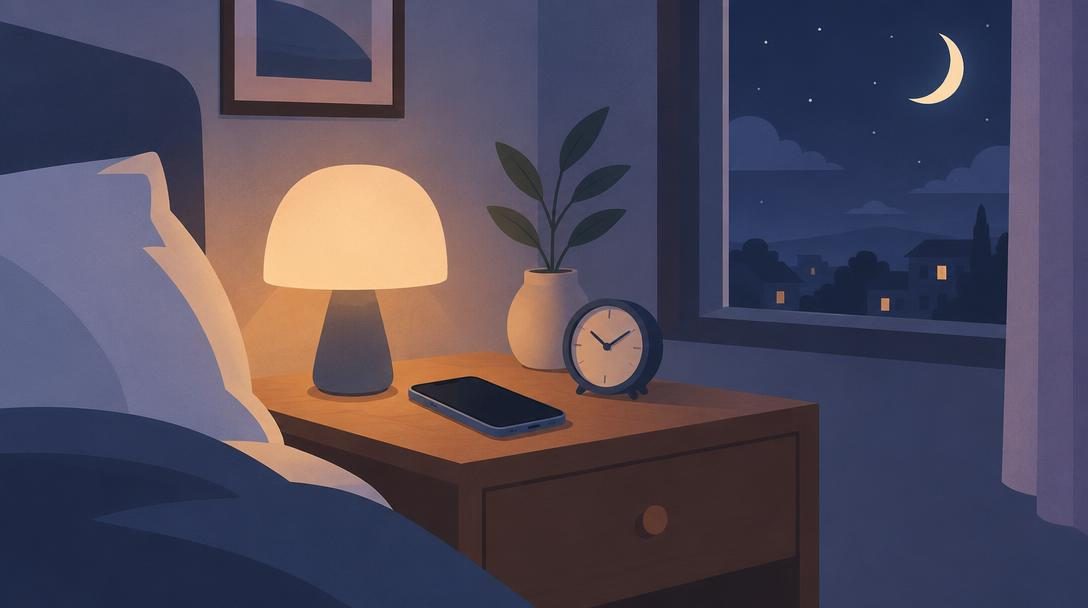
Many people enjoy winding down to relaxing audio, but leaving media playing through the night can interrupt your sleep or deplete your battery. Falling asleep while playing music or podcasts often leads to waking up abruptly later in the night when a loud, energetic song begins playing. You can prevent that disturbance by setting your device to stop playing media automatically.
Unlike standard countdown timers that trigger a ringing chime when they hit zero, the Clock application contains a specialized operational command. When the counter expires, the operating system issues a universal pause command across whatever audio, podcast, or streaming video is currently active, shutting down playback without sounding an alarm.
- Open the native Clock app on your device.
- Select "Timer" from the bottom navigation bar.
- Select the amount of time you want your music, podcast, or video to run.
- Click on "When Timer Ends" before pressing start.
- Scroll down through the list of sounds, select "Stop Playing", and tap "Set" in the upper corner.
- Click "Start" to initiate your silent media countdown.
- Double-check that you hit "Stop Playing" rather than an audible tone so your sleep is not interrupted by an alarm chime.
- Remember to change the setting back to a standard chime later if you plan to use the timer for cooking or daily tasks.
- Set the duration long enough to match your typical bedtime routine so the audio does not cut off before you fall asleep.
Automated Do Not Disturb
- Operating requirement: iOS 15 or later
- Settings section: Focus or Do Not Disturb
- Trigger types: Geographic location and scheduled times
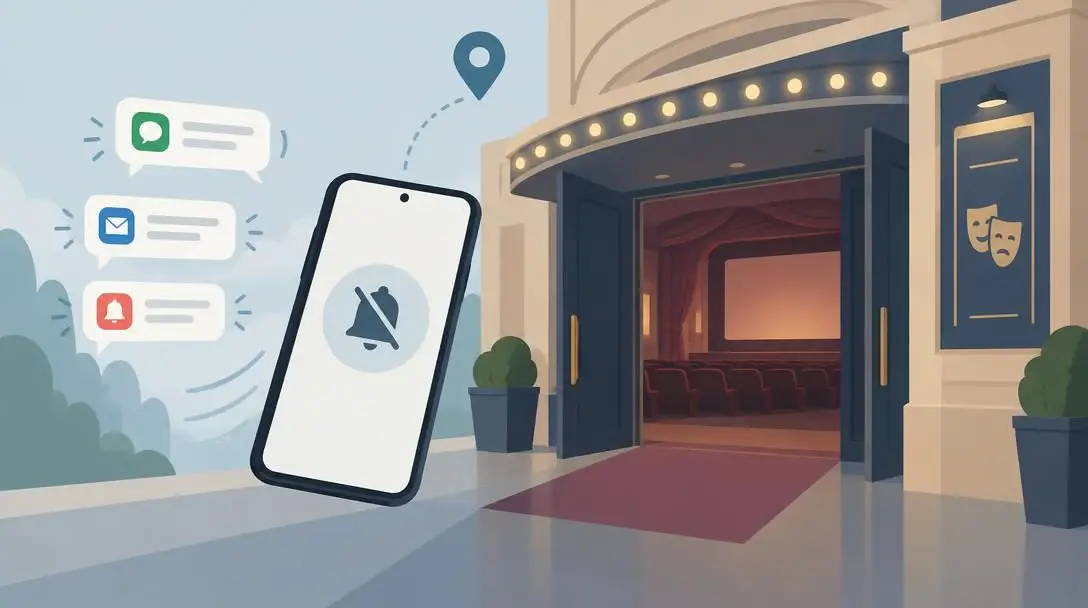
Nobody wants to be the person whose phone sounds during a quiet performance or movie screening. Equally frustrating is forgetting to unmute notifications afterward, causing you to miss critical calls when an event ends. By using the Focus feature in iOS 15 or later, you can configure your device to activate Do Not Disturb automatically and turn itself off the moment you leave the area.
This automated process connects notification muting to your device's internal clock and location services. Once you establish the parameters, the phone monitors your coordinates or schedule, keeping incoming banners and ringtones completely silent while you are present, then immediately restoring normal alerts once you exit the premises.
- Confirm your smartphone is running iOS 15 or later.
- Open device settings and choose the Focus or Do Not Disturb menu.
- Navigate to the section labeled "turn on automatically".
- Input specific times and physical locations where you want silent mode to activate.
- Save your changes so the device handles notification silences and restorations without manual intervention.
Frequently asked questions
How do I unlock my screen after freezing it with Guided Access?
To exit Guided Access and restore touch input, press the home button three times in a row. This prompts the system to exit the restricted mode and re-enables regular touchscreen navigation.
Which software version is required to use the native Measure app?
The Measure app comes pre-installed on devices running iOS 12 and later. If you cannot find it, verify that your software is up to date by navigating to Settings, General, and Software Update.
Why didn't my screen recording capture my voiceover?
A screen recording will only capture external narration if you long-press the screen record button in Control Center and explicitly turn on the microphone button located beneath the recording options before tapping start.
Will setting the timer to "Stop Playing" affect future timers?
Yes. The Clock app remembers the last action selected under "When Timer Ends". If you set it to "Stop Playing", any subsequent timer will quietly pause media instead of ringing until you manually select an audible chime again.
Can Do Not Disturb turn off automatically when I leave a movie theater?
Yes. By configuring the automated settings under Focus or Do Not Disturb in iOS 15 or later, you can link silent mode to specific locations, allowing the system to silence alerts upon arrival and re-enable them upon departure.
The bottom line
Taking full advantage of your smartphone does not require buying specialized gear or loading up on third-party software. By unlocking built-in capabilities like Guided Access, the Measure app, narrated screen recordings, playback sleep timers, and location-based Focus rules, you can transform your everyday user experience. These native settings provide simple, reliable ways to protect your privacy, navigate your surroundings, and manage alerts effortlessly.