
5 Tips To Make The Most Of Google Forms

For generations, collecting information from groups required an enormous investment of time or money. Distributing paper questionnaires meant spending hours manually retyping responses into records, a repetitive task that frequently caused transcription mistakes and lost data. While early computer solutions emerged to replace paper, they often demanded dedicated network servers, advanced coding skills, or expensive licenses from enterprise software vendors. These barriers routinely excluded independent creators, freelance professionals, community leaders, and classroom instructors from running efficient data gathering campaigns.
The introduction of accessible cloud-based office applications transformed how individuals and organizations assemble information. While corporate institutions frequently gravitate toward traditional desktop suites like Microsoft Word and PowerPoint, Google delivers a capable collection of browser-based alternatives at zero cost. Within this ecosystem, Google Forms offers a straightforward, web-based platform that allows anyone to build polished surveys, collect event registrations, administer tests, and organize real-time information without writing a single line of code or purchasing specialized systems.
Key takeaways
- Google Forms operates entirely in the browser, eliminating software installations while synchronizing submissions dynamically to cloud spreadsheets.
- Built-in quiz tools automate the grading process and can deliver immediate scoring and feedback to test-takers.
- Response destinations and notification alerts can be tailored to handle either low-volume individual entries or large-scale data campaigns.
- Pre-built templates and visual response charts help creators launch surveys rapidly and analyze trends without manual data sorting.
How Google Forms transforms data collection
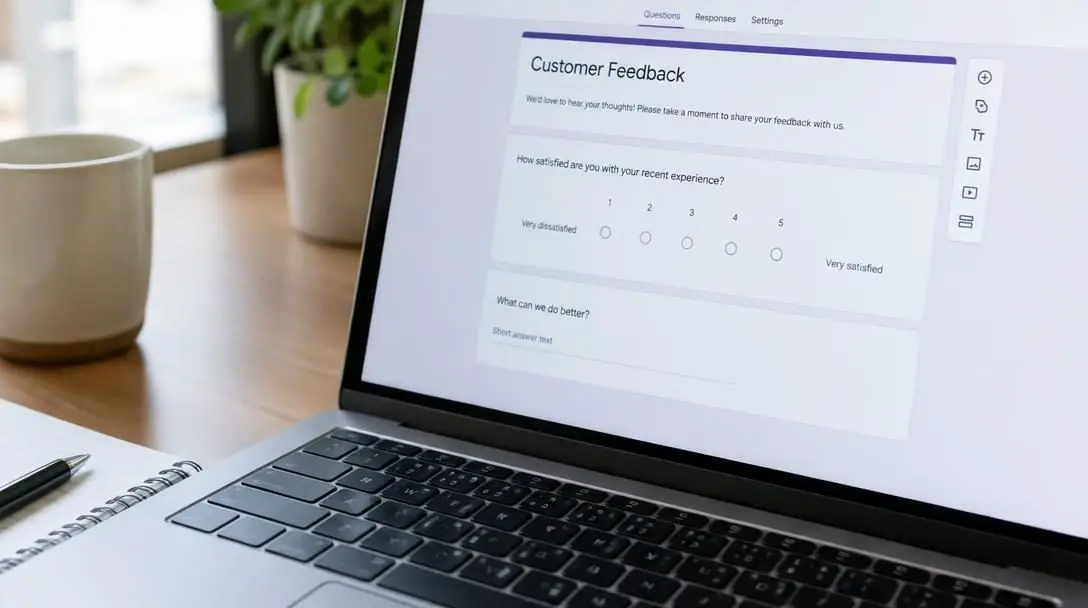
Google Forms functions entirely within modern web browsers, removing the requirement to download or maintain standalone software packages on personal computers. Because every project resides securely in the cloud, form owners can review drafts, adjust settings, and inspect incoming data from any compatible internet-connected device. The platform relies on an intuitive visual editing environment where creators can assemble inquiries, customize presentation themes, and define specific rules for response collection.
When drafting an assessment or survey, users can select from a variety of input formats, such as multiple-choice questions, short answers, and paragraph-length descriptive text. Each question includes customizable parameters, allowing creators to indicate whether a given prompt is mandatory or optional before a respondent can finalize their entry. After assembling the questions, the service produces a clean, public link that can be distributed across social channels, sent via direct email, or embedded directly inside the code of a webpage.
Upon clicking the link, participants interact with a streamlined interface dedicated exclusively to answering prompts. Behind this user-facing view, Google Forms captures and records every submission in real time. The administrative side of the platform is divided between form editing tools and a designated response dashboard. This dashboard tabulates incoming information automatically, ending the need for manual tallies. For deeper organization, the platform connects seamlessly to cloud spreadsheets, maintaining a dynamic row-by-row archive of every submission as it happens.
Cloud-based forms remove the traditional friction of manual transcription by logging responses instantly into live, organized spreadsheets.
Five essential tips to maximize Google Forms
While compiling a simple list of questions takes only minutes, exploring the platform's deeper administrative configurations turns simple questionnaires into efficient, automated workflows. The following five practices help users get the highest return from their forms.
| Tip | Primary function | Best application |
|---|---|---|
| Let the app guide you | Onboarding tutorials and interface walkthroughs | First-time users learning navigation, styling, and question layouts |
| Automate quiz grading | Self-scoring assessments with instant feedback | Academic tests, training reviews, and online blog trivia |
| Control how you get your responses | Custom routing to live sheets and email alerts | Managing inbox volume across small and large campaigns |
| Rely on templates galore | Pre-built structural layouts across multiple themes | Fast project launches for education, work, and personal tasks |
| Visualize your results | Dynamic summary graphs and visual data charts | Evaluating patterns, comparative totals, and high-level trends |
Let the app guide you
When opening Google Forms for the first time, creators often encounter introductory pop-up tutorials designed to demonstrate basic functionality. Although the common impulse is to dismiss these dialogue windows to begin working immediately, reviewing this built-in guidance saves substantial effort over time. The integrated walkthrough illustrates exactly where to add questions, how to modify font and color styling, how to adjust format rules, and where core menu tools reside. Taking a few moments to review these onboarding guides prevents users from overlooking critical settings that ensure documents are assembled accurately and efficiently.
Automate quiz grading
One of the most capable features inside Google Forms is its integrated quiz engine. Whether creating lighthearted trivia challenges for a personal blog or administering formal academic exams for course credit, the application eliminates manual marking through automatic scoring. Inside the settings panel, form owners can convert standard forms into self-grading quizzes, designate the correct solutions, and assign discrete point values to each individual prompt. Furthermore, the platform can be configured to display final scores along with correct answers directly to participants as soon as they submit, providing immediate clarity on which subject areas require additional study.
Control how you get your responses
Survey managers do not need to wait until a submission window concludes to inspect incoming metrics. Real-time updates can be channeled into specific environments to match the scale of the project. By accessing the three-dot menu on the responses dashboard, creators can select a destination spreadsheet that dynamically updates with every new entry. Administrators can also activate email notifications to receive alerts when participants submit information. Depending on the size of the target audience, users can choose between single-entry email notices or monitoring broad milestones, ensuring high-volume campaigns do not flood personal inboxes with thousands of individual alerts.
Rely on templates galore
While the service supports advanced scripting for complex customizations, users do not need programming knowledge to build attractive, practical surveys. Google provides a curated catalog of pre-designed templates covering office administration, educational assignments, and personal project management. Choosing a ready-made template offers an accessible method to launch projects without styling hurdles. For users situated between beginner status and advanced programming, assembling custom templates from scratch is also straightforward, establishing reusable structural frameworks for recurring organizational needs.
Visualize your results
Reading raw data through row-by-row spreadsheets can make comparative evaluation challenging. Google Forms includes display controls that present data visually rather than as plain text lists. By navigating to the response preferences, form administrators can view aggregated charts and graphical breakdowns alongside submitted answers. These summarized visual charts make it easy to spot overarching trends, monitor participant consensus, and compare quantitative totals at a glance without performing manual calculations.
Step-by-step guide to setting up a form
Launching a dependable data collection form requires an orderly sequence of setup tasks. Adhering to structured preparation ensures that question settings, response targets, and scoring mechanisms operate properly before the public link is distributed.

- Create and name your document: Open the platform in your browser, choose between a blank file or a layout from the template gallery, assign a clear project title, and compose a brief descriptive summary explaining the objective of the questionnaire to your participants.
- Add and format questions: Use the editing toolbar to create your fields, select the ideal input style—such as short text or multiple choice—for each question, arrange items logically, and mark essential questions as mandatory so respondents cannot bypass required information.
- Configure quiz and visual options: Open the settings panel to activate the quiz engine if you are building an assessment, assign point values, designate correct answers, set immediate score delivery preferences, and confirm that summary charts are enabled for data review.
- Set up the response spreadsheet: Navigate to the responses dashboard, click the three-dot options icon, link the form to a new or existing cloud spreadsheet for live data storage, and adjust your email notification settings to match your expected response volume.
- Preview and distribute: Open the preview window to test the form from a participant's perspective, verify that required validations and question logic work as intended, confirm that sample submissions appear in the connected spreadsheet, and then share the public link through email, social channels, or website embeds.
Common mistakes to avoid
While Google Forms provides an approachable interface, minor configuration errors can produce skewed data or create frustrating hurdles for participants. Keeping these potential issues in mind ensures a smooth operational experience:
- Bypassing introductory pop-ups: Dismissing initial walkthroughs leaves users guessing where crucial controls reside, often resulting in layout errors and misplaced styling options.
- Mishandling notification parameters: Activating individual submission alerts on forms aimed at massive audiences leads to cluttered inboxes, whereas failing to enable them for low-volume intake can cause missed deadlines.
- Neglecting quiz answer key verification: Publishing an assessment without double-checking the answer key can miscalculate participant scores and provide misleading immediate feedback.
- Overlooking visual data summaries: Restricting analysis entirely to plain text spreadsheets makes spotting high-level patterns slow and difficult compared to using the built-in summary charts.
Advanced form lifecycle and long-term strategy
Once you are comfortable with basic question editing, you can integrate forms into long-term organizational processes. Because collected entries update linked spreadsheets continuously, forms can act as practical tools for maintaining ongoing project logs, tracking resource inventories, and gathering attendance figures for recurring events.
Establishing consistent design standards across multiple surveys also builds familiarity. Freelancers, businesses, and educators can build customized templates featuring consistent structures and visual themes. Reusing a refined layout saves preparation time for future questionnaires while presenting a cohesive aesthetic to regular respondents.
Finally, actively managing the operational lifecycle of your forms ensures clean datasets. Survey administrators can define distinct collection windows and use the manual toggle on the responses tab to stop accepting submissions as soon as an event reaches capacity or an assignment deadline passes.
Frequently asked questions
Does Google Forms require paid software or installation?
No. Google Forms operates entirely within a web browser and is available at zero cost. There is no software to install, and users can access, design, and manage their documents across supported internet-connected devices.
How does the automatic quiz grading feature work?
Inside the settings panel, users can toggle the document into a quiz. This setting allows creators to assign point values to questions, designate the correct responses, and choose whether respondents receive their grades and correct answers instantly upon submission.
Where are Google Forms responses stored?
Responses are compiled automatically within the administrative responses tab of the form. Additionally, creators can link the form to a dynamic cloud spreadsheet that records every submission in a row-by-row format in real time.
Can I turn off submissions once a survey is finished?
Yes. Inside the responses dashboard, form owners can use a simple toggle to stop accepting responses, allowing them to control the exact duration of their data collection window.
How can I analyze survey results without reading every single entry?
The platform features built-in visualization tools located in the response settings. Instead of reading plain text lists, administrators can inspect aggregated summary charts that display trends and comparisons at a glance.
The bottom line
Online data collection no longer requires expensive enterprise licenses or tedious manual transcription. By combining browser-based accessibility with automated quiz grading, flexible notification routing, pre-designed templates, and dynamic visual summaries, Google Forms offers a comprehensive toolkit for educators, organizers, and professionals alike. Mastering these core settings allows creators to design seamless participant experiences and transform incoming answers into organized, actionable insights with minimal administrative overhead.