
Can a Tablet Truly Be a Laptop Replacement? Here’s What You Need to Consider
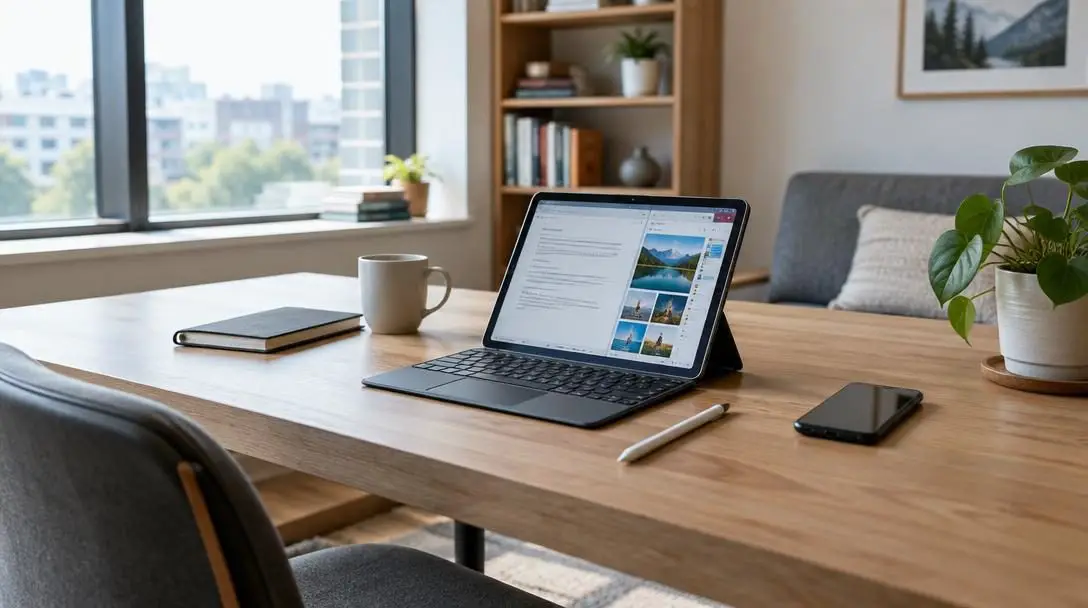
If you think back to the state-of-the-art personal computers of the 1990s, they bear little resemblance to the pocket-sized machines we carry everywhere today. Those early computers were massive pieces of hardware that commanded dedicated desks, sprawling cable runs, and significant physical space in homes and offices. Today, technological innovation has moved so quickly that a modern smartphone like an iPhone fits comfortably in your pocket while delivering vastly more processing speed than the complex computing machinery used to put astronauts on the moon during the 1960s.
Because of these monumental hardware leaps, modern buyers are no longer confined to choosing strictly between a stationary desktop tower and a clamshell laptop. The tech landscape has opened up to encompass smartphones, slate tablets, and convertible hybrid machines that target distinct everyday workflows. However, this ongoing hardware miniaturization raises a fundamental dilemma for professionals, students, and casual users: can a tablet, such as an Apple iPad or Microsoft Surface Pro, truly step in as a complete laptop replacement, or is it fundamentally destined to remain a companion screen meant for entertainment?
Key takeaways
- Entry-level tablets excel at casual tasks like reading, streaming video, and answering email, but demanding productivity often requires professional-grade hardware.
- Outfitting a premium tablet with an attachable keyboard, trackpad, and digital stylus can easily drive the overall cost above that of a comparable laptop.
- Laptops maintain a clear ergonomic edge for typing on your lap and still provide broader multitasking, comprehensive port selection, and complete desktop application features.
- Evaluating whether a tablet can replace your personal computer requires cataloging your daily software dependencies, peripheral needs, and typing volume before buying.
The Evolution of Tablets: From Couch Slates to Modular Workstations
When modern touchscreen slates first arrived in consumer electronics stores, manufacturers pitched them almost entirely as casual consumption devices. They were lightweight, intuitive, and fun to pass around the living room, but people largely used them to stream films on Netflix, scroll through social feeds, and play simple touch-based games. You were far more likely to sink into an armchair with an early tablet than you were to sit upright and draft a business proposal or manage an extensive educational assignment.
Over the past decade, the functional gulf separating portable personal computers from slate devices has narrowed considerably. Hardware designers realized that mobile workers craved the featherweight profile of a tablet without losing the typing utility and computational speed of a traditional notebook. As display panels grew sharper and mobile system-on-chip architectures became dramatically more capable, tech companies introduced professional-grade tablets designed specifically for heavy workloads.
Choosing between these form factors is no longer just about deciding which secondary gadget to add to your collection; it is about whether one modern device can completely fulfill the responsibilities of the other.
The rise of high-end models like the Microsoft Surface Pro and the Apple iPad Pro transformed the entire category from simple digital viewers into modular workstations. Alongside these devices came an entire ecosystem of productivity accessories, including rigid keyboard decks, responsive trackpads, and pressure-sensitive digital styluses. Yet, as tablets adopted professional capabilities, the economics changed. A tablet is no longer guaranteed to be the affordable companion gadget it once was; once you add first-party accessories and expanded internal storage, the final package often rivals or exceeds the price of an ultraportable notebook.
Comparing Tablet and Laptop Architecture Across Core Functions
Deciding whether a slate can replace a computer requires examining how each form factor handles core day-to-day operations. The physical design philosophy behind each device impacts everything from wrist comfort to battery endurance and software flexibility.
Tablet hardware is engineered around extreme portability and energy efficiency. Because entry-level tablets do not carry an integrated physical keyboard deck, they are featherlight, slim, and effortless to operate with one hand while walking, standing, or sitting in a cramped airplane seat. Furthermore, because their internal components and operating environments are optimized for mobile efficiency, tablets regularly deliver exceptional battery longevity. Traditional laptops have certainly improved their power consumption over the years, but their internal cooling fans, higher-wattage components, and persistent background processes can drain a battery far quicker under sustained loads.
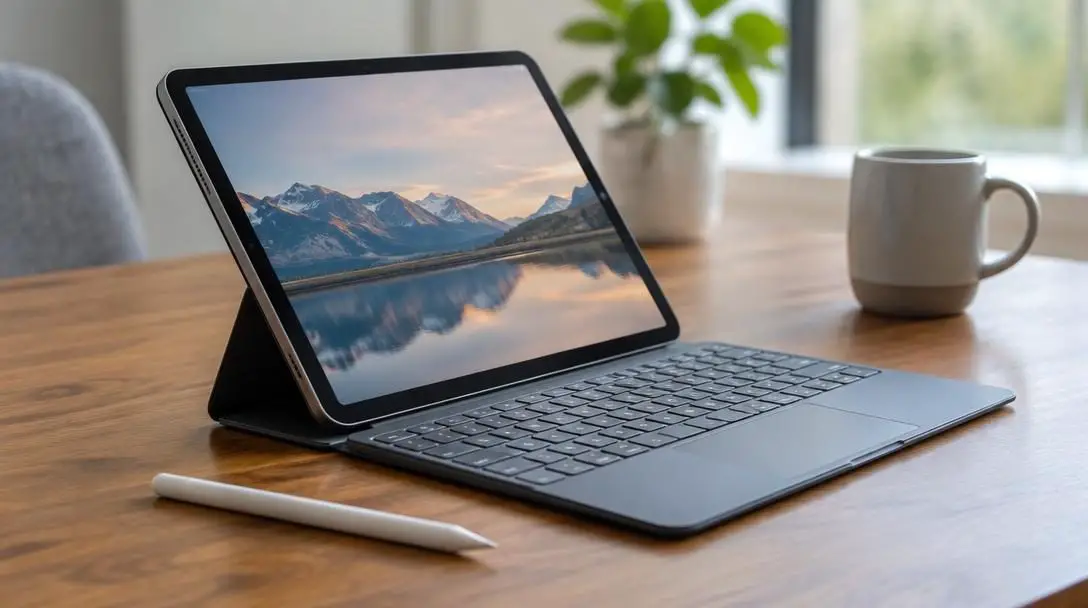
Conversely, traditional laptops retain fundamental structural advantages when it comes to input mechanics and ergonomics. A laptop utilizes a sturdy physical hinge that joins the display to a permanent keyboard and trackpad deck. This balanced design allows the machine to sit securely on uneven surfaces, such as your lap during a commute, without wobbling or tipping backward. Setting up an attachable tablet keyboard, on the other hand, frequently demands a flat, deep tabletop to accommodate folding folio stands or rear kickstands.
Multitasking and software environments also present substantial differences. Traditional laptops run full desktop operating systems engineered for unrestricted window placement, robust local file management, and deep backward compatibility with legacy applications. Tablets emphasize sandboxed environments, curated application storefronts, and touch navigation. While pro-tier tablets now incorporate advanced split-screen modes and external display support to bridge this gap, complex multi-app routines still feel more native on a traditional desktop interface.
| Form Factor Category | Primary Input Method | Typical Display Sizes | Operating System Style | Total Cost Profile |
|---|---|---|---|---|
| Entry-Level Slate | On-screen touchscreen, optional stylus | 8 to 11 inches | Mobile, sandboxed app environment | Modest, highly affordable |
| Pro-Tier Tablet Bundle | Touchscreen, magnetic keyboard, precision stylus | 11 to 13+ inches | Advanced mobile or hybrid platform | Premium, often matches or tops laptops |
| Traditional Laptop | Integrated mechanical keyboard and trackpad | 13 to 17 inches | Full desktop OS with freeform windows | Competitive price-to-performance ratio |
Key Hardware Contenders in the Modern Computing Market
Navigating the tablet-versus-laptop landscape means evaluating specific hardware approaches. Manufacturers tackle the balance between portability and productivity through distinct hardware philosophies.
Apple iPad Pro
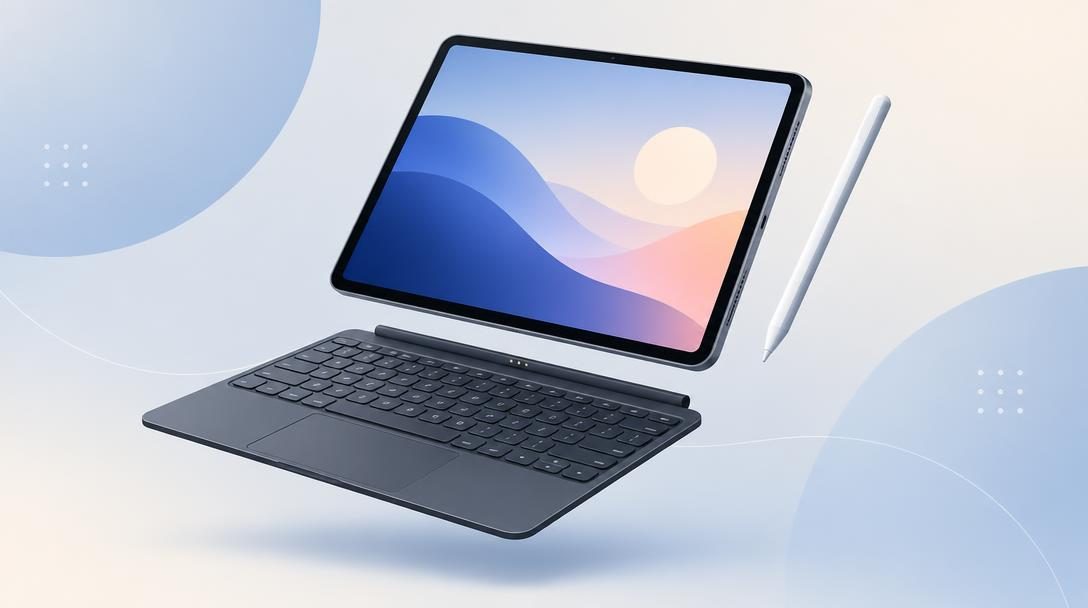
- Form factor: Premium slate tablet with modular keyboard attachments
- Display range: Available in sizes exceeding 12 inches
- Primary input: Touchscreen, digital stylus, and optional magnetic keyboard
- Price tier: High-end professional category
The iPad Pro represents the pinnacle of mobile-first engineering adapted for serious creative and office tasks. With screens that reach well beyond 12 inches, it delivers a visual canvas comparable to a compact notebook. Its primary strength lies in its modularity: it functions as a lightweight drawing pad or media viewer during downtime, then snaps magnetically into an elevated keyboard case with an integrated trackpad for intensive writing. However, the cost of the tablet combined with pro accessories quickly escalates into premium laptop territory.
Microsoft Surface Pro
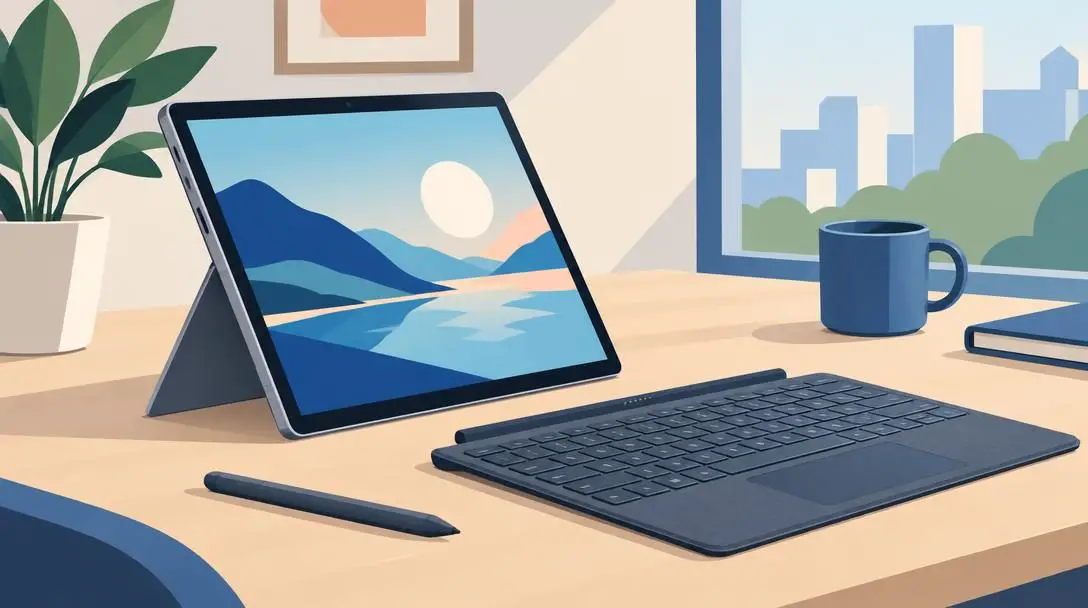
- Form factor: 2-in-1 hybrid slate with built-in kickstand
- Display range: Approximately 13-inch visual workspace
- Primary input: Touchscreen, digital pen, and detachable keyboard cover
- Price tier: Mid-to-high professional workstation tier
The Surface Pro tackles the replacement question from the opposite angle by placing a full desktop computing environment inside a slim slate chassis. Built around an integrated rear kickstand and a detachable keyboard deck, it offers immediate flexibility for users who rely on full desktop software executables and traditional file structures. While it delivers desktop parity, using the kickstand mechanism on unstable or narrow surfaces remains more cumbersome than balancing a standard clamshell laptop.
Entry-Level Slates

- Form factor: Lightweight standalone slate
- Display range: Typically 8 to 10.9 inches
- Primary input: Capacitive touchscreen
- Price tier: Budget to moderate consumer pricing
For individuals whose everyday routines consist of streaming videos, reading digital books, shopping online, and firing off short personal emails, entry-level slates provide unbeatable value. These devices do not pretend to be heavy-duty workstation replacements; instead, they prioritize hand-held comfort, instant-on convenience, and days of casual battery life at a fraction of the cost of a laptop.

Traditional Laptops
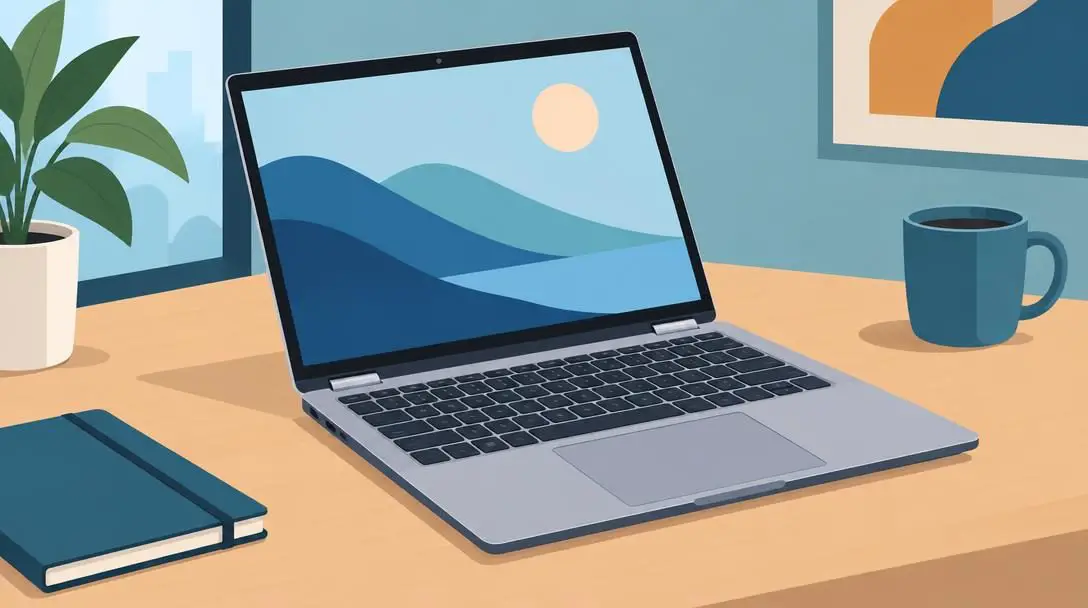
- Form factor: Clamshell body with integrated hinge
- Display range: 13 to 17 inches
- Primary input: Full-travel physical keyboard and trackpad
- Price tier: Broad range from budget to ultra-premium
The classic clamshell laptop remains the benchmark against which all mobile workstations are measured. By integrating the screen, physical keyboard, trackpad, and multiple input/output ports into a single rigid chassis, laptops provide immediate ergonomic stability anywhere you sit. Furthermore, manufacturers can offer larger screen sizes—stretching up to 15, 16, or 17 inches—giving power users the visual real estate needed for detailed multi-window projects without requiring an external monitor.
How to Assess Your Personal Computing Needs
Because no single hardware setup fits every user, moving your primary computing tasks to a tablet requires careful consideration. Work through these sequential steps to determine whether a slate can genuinely satisfy your daily obligations.
- Log your daily software usage: Keep a detailed log of every application, browser tab, and utility you open over a normal working week. Separate your routine into simple consumption tasks and complex production workflows.
- Audit application feature parity: Check whether the critical software tools you rely on exist on mobile operating systems, and verify whether mobile versions include advanced features like spreadsheet macros or custom browser extensions.
- Evaluate your typing volume: Calculate how many hours you spend producing long-form text, code, or spreadsheet entries. Test whether an attachable mobile keyboard offers sufficient key travel and palm support for your typing habits.
- Review external port requirements: Take stock of the flash drives, external hard drives, SD cards, and secondary displays you plug in routinely. Determine how many adapters or hub dongles you would need to carry alongside a single-port tablet.
- Tally the total system price: Calculate the full retail price of your desired tablet, adding the cost of an attachable keyboard, stylus, protective cover, and port adapters. Compare that complete total against a comparably equipped traditional notebook.
Frequent Mistakes When Switching from a Laptop to a Tablet
Many consumers who attempt to switch entirely to a tablet encounter frustration because they fail to anticipate how mobile devices differ from traditional personal computers. Avoiding these common mistakes can save you significant time and money.
- Assuming all tablet models have equal capabilities: An entry-level tablet will struggle with intensive professional tasks, while buying an expensive pro-tier slate solely for web browsing and streaming leaves costly processing power completely untapped.
- Forgetting to budget for essential accessories: Viewing a tablet's standalone retail price as the final cost often leads to budget overruns once you add an official keyboard cover, digital stylus, and protective case.
- Overlooking typing stability in tight spaces: Assuming an attachable keyboard turns a tablet into an identical laptop alternative overlooks the awkwardness of kickstands on soft bedding, narrow train seats, or small cafe tables.
- Expecting identical desktop software functionality: Believing a mobile app will perfectly duplicate its desktop counterpart can derail complex projects that depend on deep file access, specialized plugins, or legacy software drivers.
- Discounting the inconvenience of dongles: Relying on a single built-in connection port means having to carry, manage, and plug in multi-port dongles whenever you need to charge and connect an external storage drive simultaneously.
Frequently asked questions
Can an entry-level tablet handle everyday laptop tasks?
Yes, if your everyday computing consists mainly of reading ebooks, checking email, streaming television shows, and browsing social media. For these casual use cases, an entry-level tablet is lighter, easier to hold, and often preferable to a bulky laptop.
Is a tablet setup cheaper than buying a traditional laptop?
Not necessarily. While basic tablets are inexpensive, professional models like the iPad Pro or Microsoft Surface Pro become quite expensive once you purchase the necessary keyboard cover, stylus, and port adapters, frequently costing more than a capable laptop with similar storage.
How do tablet keyboards compare to traditional laptop keyboards?
Attachable tablet keyboards provide full typing functionality, but they often feature shallower key travel, smaller trackpads, and flexible magnetic bases. They also typically require flat, deep desk surfaces to support their kickstands, making them less comfortable to use on your lap.
Can I connect external hard drives and flash drives to a tablet?
Yes, modern tablets support external drives through their charging ports. However, because most tablets feature only one or two ports, you will likely need to purchase USB-C hubs or multi-port adapters to connect drives while simultaneously charging the device.
Do mobile versions of desktop apps have the same features?
Mobile applications have advanced significantly, but they still frequently omit specialized desktop features such as macro execution in complex spreadsheets, browser extension support, and legacy system file management.
The bottom line
As microprocessors become more efficient and mobile software platforms continue to mature, the dividing line between lightweight laptops and slate tablets will keep eroding. With screen sizes exceeding 12 inches becoming standard on pro slates, tablets can now easily match the visual footprint of an ultraportable notebook. For many users, this modular blend of touchscreen freedom, digital pen input, and all-day battery life creates an ideal, modern computing experience.
Even so, a tablet is not an automatic upgrade for everyone. If your daily routine involves extensive typing outside of a desk, complex multi-window multitasking, heavy peripheral connectivity, or desktop-specific applications, a traditional laptop remains the more practical, ergonomic, and cost-effective tool. Before committing to a hardware switch, visit a retail store to test the physical keyboards, evaluate the operating system layouts in person, and ensure your must-have tools translate smoothly to a mobile form factor.