How to Speed Up Your PC
When a personal computer begins to operate sluggishly, open files with noticeable latency, or stutter under ordinary multitasking, users often assume the device has reached the end of its functional life. The immediate reaction is frequently to abandon the setup entirely and purchase a brand-new machine. While current computers on store shelves certainly feature upgraded hardware architectures, replacing an entire setup at the first sign of slowdown is often premature and unnecessarily expensive.
Personal computers accumulate digital debris and system overhead gradually throughout years of typical operation. Software tools installed for temporary projects linger in storage, hidden background utilities consume processing cycles from the moment of system startup, and internal drives fill up with archived files that are rarely accessed. Modern applications also demand greater system memory and faster storage access than older configurations were originally built to provide. By understanding the root hardware and software bottlenecks that govern computing speed, you can systematically revitalize your existing PC, saving substantial money while regaining a responsive, efficient daily experience.
Key takeaways
- Sluggish performance is often caused by software clutter and hardware bottlenecks rather than a machine reaching the end of its useful lifespan.
- Upgrading system memory enables computers to handle multiple concurrent programs without relying on slow storage swapping.
- Swapping out a traditional mechanical hard disk drive for a modern solid state drive eliminates physical read and write delays.
- Offloading inactive archives to cloud storage frees crucial local drive capacity required for optimal operating system efficiency.
- A clean reinstallation of the operating system resolves deep-seated background clutter when standard cleanup routines fail.
The Mechanics of Computer Performance
Diagnosing and remedying a slow computer requires an understanding of how hardware components interact to manage information and execute software tasks. Everyday performance depends upon a continuous balance among the central processing unit, system memory, and storage drives. When any one of these elements encounters an operational bottleneck, the entire system experiences noticeable delays.
Random access memory, or RAM, functions as the computer's immediate workspace. Whenever you launch an application—whether an internet browser, a text editor, or photo processing software—the operating system transfers the program files and working data from storage into RAM. This arrangement allows the processor to manipulate data almost instantaneously. However, if your system lacks adequate RAM to hold all active applications and background services simultaneously, performance deteriorates rapidly. Under these constrained conditions, the operating system is forced to juggle data by continuously moving information back and forth between active memory and the physical storage drive. This continuous swapping process introduces severe performance penalties during daily computing.
Replacing an aging mechanical hard drive with a solid state drive eliminates physical read and write delays, making everyday file handling noticeably faster.
Storage drives represent the long-term memory of a computer, holding the operating system, installed software, and user documents. Traditional storage solutions, known as hard disk drives or HDDs, depend on internal mechanical hardware. These drives utilize magnetic spinning platters alongside mechanical read and write heads that must physically traverse across the platter surfaces to access or store data. As an HDD reaches capacity and files become fragmented across physical sectors, retrieving information takes progressively longer. Conversely, modern solid state drives, or SSDs, lack moving parts entirely. Relying on flash memory chips, SSDs retrieve and record data almost instantly. Transitioning an operating system and its primary applications onto an SSD yields drastically reduced boot times and rapid program launches.
Beyond hardware components, the operating system itself plays an instrumental role in performance regulation. Over long periods of service, an operating system accumulates background services, leftover registry entries, and remnants of previous program installations. When the software environment becomes heavily congested, even capable underlying hardware components will struggle under the weight of unnecessary operational overhead.
Five Practical Steps to Speed Up Your PC
Restoring speed to an aging personal computer does not require replacing the entire machine. By executing a sequence of targeted software optimizations and cost-effective physical hardware upgrades, you can dramatically improve responsiveness.
| Upgrade Method | System Category | Primary Mechanism | Direct Performance Benefit |
|---|---|---|---|
| Bloatware Purging | Software Maintenance | Uninstalls redundant programs and stops startup processes | Frees system memory and reduces processor overhead |
| Cloud Storage Offloading | Storage Management | Transfers static documents and archives off local drives | Reclaims drive capacity to preserve read/write efficiency |
| RAM Capacity Expansion | Hardware Component | Increases physical workspace for concurrent applications | Minimizes memory swapping during heavy multitasking |
| Solid State Drive Transition | Hardware Component | Replaces mechanical spinning platters with flash memory | Accelerates boot times and eliminates file seek latency |
| Clean OS Reinstallation | Software Environment | Formats the local system and restores a fresh software layer | Removes persistent background clutter and deep bottlenecks |
Remove Bloatware and Unnecessary Software
An exceptionally common source of machine slowdown is the accumulation of unnecessary software. Many retail computers arrive pre-configured with manufacturer-installed applications that users neither requested nor need. Frequently referred to as bloatware, these redundant utilities occupy local storage while running hidden background tasks that start automatically upon boot. These invisible background processes consume processing power and occupy precious RAM before you even launch your preferred applications.
To eliminate this overhead, access your system settings and carefully review the complete registry of installed programs. Sort these applications into software you actively use and software you have no plan to use. Systematically uninstall redundant utilities, trial software, and forgotten single-use tools. Removing this clutter provides an immediate boost in system responsiveness by freeing hardware resources for active programs.
Offload Inactive Documents to Cloud Storage
Storage drives operating close to maximum capacity experience noticeable drops in overall read and write performance. To relieve pressure on your primary drive, evaluate how you store large archives, historical project records, and inactive personal media. When local drives have adequate free headroom, the operating system can manage temporary cache files and routine indexing far more efficiently.
Identify older documents and media libraries that do not require constant local availability, and transfer them to an online cloud storage provider. Platforms such as Dropbox provide cost-effective plans, alongside complimentary tiers that grant a baseline allotment of storage at no cost. Once these archives are securely uploaded to the cloud, delete the local duplicates from your computer to clear drive space and restore performance.
Upgrade Your System RAM
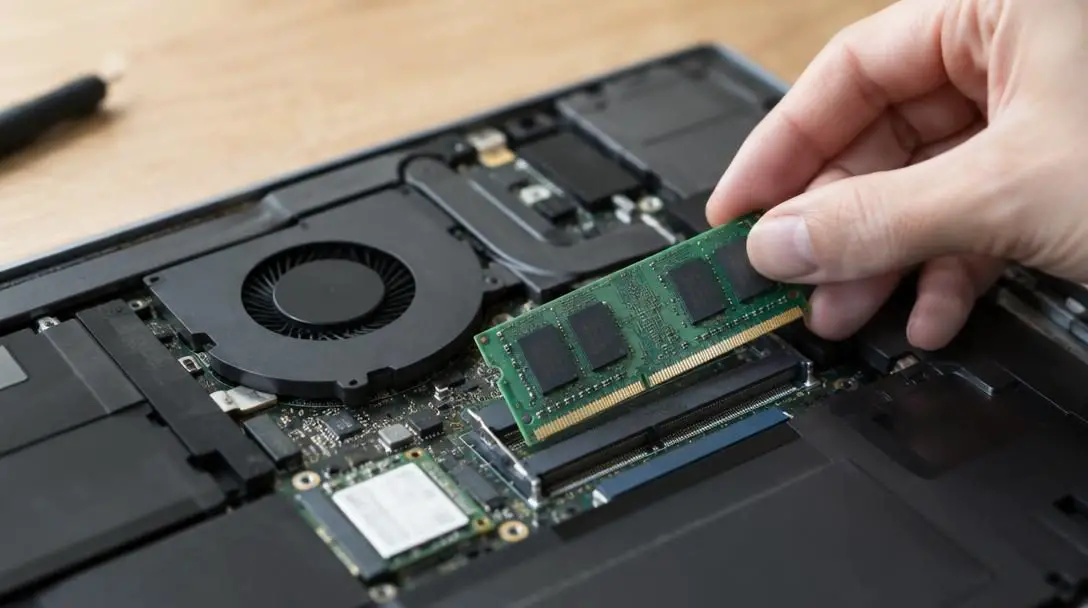
Expanding system memory remains one of the most powerful hardware investments available for an older computer. If your machine struggles when handling numerous browser tabs, running office suites, or switching between heavy applications, an undersized memory pool is frequently the core issue.
Examine your system configuration settings to determine the exact amount of RAM currently installed. Next, look up your computer's specific manufacturer and model number online to identify the maximum memory capacity supported by your motherboard. Acquire the largest amount of compatible RAM your personal budget allows up to that hardware cap. You can choose to complete the physical installation yourself using step-by-step model guides available online, or hire a professional technician to seat the modules.
Replace Older Hard Drives with a Solid State Drive
If your computer relies on an older hard disk drive containing mechanical platters, swapping that drive for a solid state drive is the single most transformative physical upgrade you can execute. Mechanical drives suffer compounding delays as data spreads across platters, which produces sluggish system navigation and slow program launches.
Because an SSD relies purely on flash memory chips rather than mechanical seek heads, data transfers take place almost instantly. Swapping an aging mechanical hard drive for a solid state drive eliminates physical latency, drastically shortens boot times, and makes daily file management feel smooth and responsive.
Reinstall the Operating System
When basic software uninstallation and storage cleanups fail to cure deep-seated system instability or persistent sluggishness, performing a clean operating system reinstallation provides an uncompromised fresh start. Over years of updates and routine usage, operating systems accumulate corrupt settings, lingering registry entries, and persistent background hooks that manual uninstallers miss.
Before proceeding with a fresh installation, create a verified backup of every critical document, media archive, and credential file to prevent accidental data loss. Consult the specific installation directions provided for your operating system version. Executing a fresh install purges long-standing software bottlenecks, returning your computer's software layer to a pristine, responsive condition.
Critical Optimization Mistakes to Avoid
When optimizing personal computers, well-intentioned users often commit missteps that undermine their efforts or cause unexpected data loss. Remaining aware of these frequent pitfalls helps protect your hardware and data throughout the maintenance process.
- Uninstalling software blindly: While clearing out bloatware is vital, never remove unfamiliar programs without first researching their exact function. System-critical utilities, essential device drivers, and chipset controllers often feature cryptic names, and removing them can destabilize the operating system.
- Failing to back up data before reinstalling: Attempting to reinstall an operating system without a complete, independent backup in place risks permanent loss of work files, configurations, and personal documents.
- Purchasing incompatible RAM modules: Memory modules vary across multiple hardware generations, physical formats, and operating speeds. Ordering RAM without confirming exact compatibility with your specific model can leave you with unworkable components.
- Ignoring hardware limits: Motherboards feature strict maximum thresholds for physical memory capacity. Purchasing memory beyond the system's documented maximum threshold leads to unrecognized hardware and wasted expenditure.
- Deleting files prior to cloud sync completion: When offloading files to an online service like Dropbox to free local capacity, confirm that all files have finished uploading before removing local copies. Prematurely deleting un-synced data can result in permanent loss.
- Expecting software tweaks to solve physical drive failure: Software cleaning and registry maintenance cannot revive a failing mechanical hard drive. If a drive exhibits physical hardware errors, replacing it with an SSD is the necessary course of action.
How to Plan Your PC Refresh Workflow
Approaching your system refresh in a structured order ensures that you address low-effort software adjustments before investing in physical hardware components. Follow this step-by-step progression to optimize your machine effectively:
- Back up all irreplaceable documents, images, and project files to external storage or a cloud repository to ensure full data protection.
- Review your operating system settings and uninstall all redundant bloatware, obsolete software packages, and unused utilities.
- Audit your storage drive and move aged, inactive documents to an online cloud platform such as Dropbox, removing local duplicates once syncing completes.
- Check your current RAM capacity against the computer manufacturer's supported maximum limit and install upgraded memory modules if multitasking performance remains constrained.
- Replace an aging mechanical hard drive with a solid state drive to eliminate physical seek times and accelerate application responsiveness.
- Perform a clean operating system installation if persistent background services or deep-seated system clutter continue to hinder machine responsiveness.
Evaluating Hardware Limits and Next Steps
Once you have eliminated software bloatware, expanded system memory, offloaded static archives, or replaced a mechanical drive with an SSD, take time to evaluate your computer's refreshed capabilities against your daily requirements. In many cases, these strategic adjustments restore sufficient responsiveness to handle routine web browsing, office productivity, and multimedia playback effortlessly.
However, if your system has been upgraded to its maximum supported RAM capacity, operates from a fast SSD, and runs a clean operating system, yet still stutters under demanding tasks like heavy computational analysis or intensive media rendering, you have likely reached the ultimate physical limits of the processor. At that stage, you can explore purchasing a brand-new computer with complete confidence, knowing you extracted the maximum functional life from your existing hardware rather than discarding it prematurely.
If your upgrades successfully revitalized your PC, establish healthy operational habits to keep it running smoothly. Avoid installing unvetted software suites, maintain generous free capacity on your primary drive, clean up unused files periodically, and maintain current backups using cloud storage solutions. Thoughtful hardware maintenance combined with consistent software management will keep your personal computer performing dependably for years to come.
Frequently asked questions
Does adding more RAM always make a computer run faster?
Adding RAM improves speed primarily when your computer currently lacks enough memory to hold all active programs and background processes simultaneously. If a system runs out of RAM, it is forced to swap data back and forth to the storage drive, causing major slowdowns. Expanding RAM eliminates this swapping bottleneck during multitasking, but it will not accelerate single lightweight tasks if your existing memory capacity was never exceeded.
Why does replacing an HDD with an SSD make such a significant difference?
Traditional hard disk drives rely on physical spinning platters and mechanical read/write heads that must physically locate data scattered across the drive surface. Solid state drives contain no moving parts and store information on flash memory chips, allowing for near-instant data retrieval. This structural difference drastically cuts boot times, eliminates file access delays, and makes overall system navigation feel far more responsive.
What is bloatware, and why does it affect PC speed?
Bloatware refers to unneeded, pre-installed software packages packaged with a computer by the manufacturer. These applications occupy valuable local drive space and frequently launch background services automatically upon system startup. These hidden background operations continuously consume processing power and RAM, reducing the hardware resources available for your active work.
How much cloud storage do I need to help speed up my computer?
The amount of cloud storage you need depends on the volume of inactive files, archives, and media you need to offload. Platforms such as Dropbox offer inexpensive tiers alongside free basic tiers with set storage allocations. Offloading even a modest collection of large historical documents can free up the essential drive headroom required for optimal operating system performance.
When should I stop upgrading an old PC and simply purchase a new one?
You should consider buying a new computer when you have maximized the system's supported RAM, installed an SSD, and cleaned the operating system, but the machine still cannot handle your core computational tasks. If advanced workloads like heavy computing or intensive rendering remain too slow despite these upgrades, the central processor has reached its physical limits, making a replacement system the logical choice.
The bottom line
Sluggish performance is not an automatic signal that your computer belongs in an electronics recycling bin. In most cases, system slowdowns stem from accumulated software bloat, saturated storage drives, insufficient RAM, or outdated mechanical hard disks. By systematically clearing unnecessary programs, offloading static archives to cloud storage, upgrading to solid state storage, and maximizing your system memory, you can restore a fast, responsive computing experience while avoiding the significant expense of a premature system replacement.