
Tips for printing documents at home: maximizing quality and minimizing waste
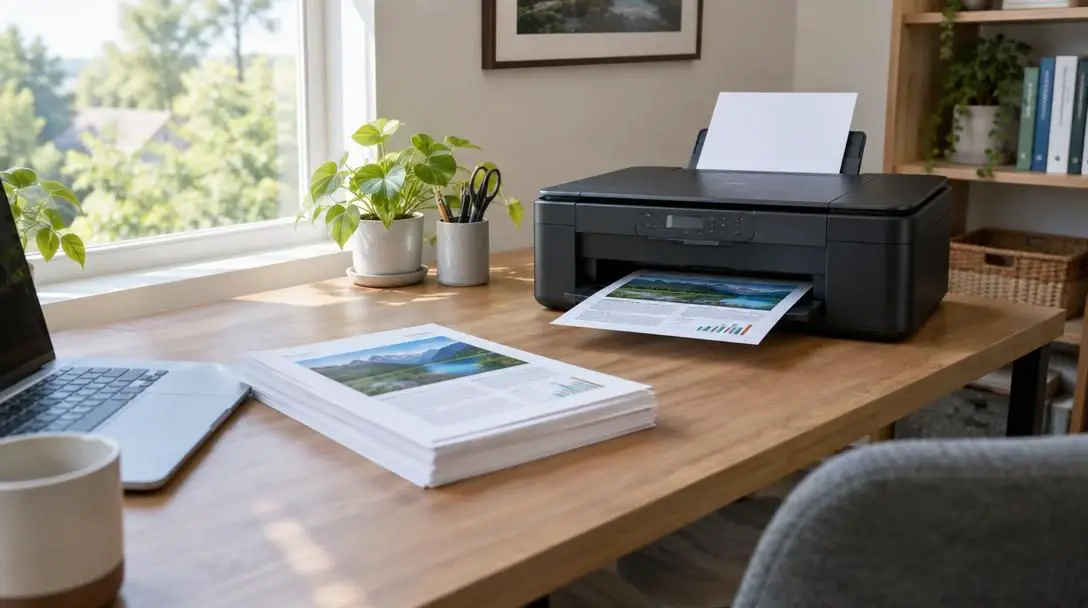
The modern transition toward remote work and distance learning has shifted administrative responsibilities from centralized corporate facilities into private homes. In a traditional corporate office, the logistical burdens and ongoing operating costs of printing—ranging from replacement cartridges and specialized media to equipment maintenance—are largely invisible to the individual worker. Within a home office, however, every paper jam, discarded draft, and depleted toner cartridge directly impacts both your personal household budget and the domestic waste stream.
Operating a home printer efficiently requires balancing output quality with conscious resource management. Achieving sharp, legible pages without needlessly consuming ink, toner, and paper demands an understanding of how printing hardware functions, how to configure driver software, and how to maintain equipment over time. By establishing mindful document workflows, you can produce professional physical records while cutting operational expenses and environmental impact.
Key takeaways
- Matching document types to appropriate media weights prevents ink bleed, paper warping, and mechanical feeder jams.
- Adjusting print quality modes between draft, normal, and high resolution saves significant amounts of ink and toner.
- Inspecting a visual print preview and checking supply gauges prior to long runs eliminates accidental blank pages and mid-job failures.
- Embracing duplex printing immediately cuts paper consumption in half while lowering long-term media purchasing expenses.
- Recycling exhausted cartridges and adopting digital-first review workflows substantially lowers home office environmental waste.
Understanding printer mechanics: inkjet vs. laser technology
To produce consistently clean prints without wasting expensive consumables, you must first understand the operating mechanics of common home printing hardware. Most residential workspaces rely on either inkjet or laser devices, and each platform interacts with paper fibers through fundamentally different mechanical and chemical processes.
Inkjet printers operate by firing microscopic liquid droplets from fine nozzles directly onto the surface of the page. Once the liquid contacts the sheet, capillary action draws the liquid colorant into the cellulose fibers. Because this technology relies on liquid absorption, the porosity and surface sizing of the paper play a decisive role in the final output quality. If the media absorbs moisture too rapidly or lacks structural sizing, the liquid spreads laterally, causing feathered text edges, muddy lines, and prolonged drying times that easily smudge under touch. Furthermore, dense color graphics deposit significant fluid volumes, which can saturate lightweight sheets and cause physical wrinkling.
Laser printers rely on an electrostatic and thermal process rather than liquid deposition. Inside a laser engine, a photoreceptor drum holds a uniform electrical charge that is selectively altered by a focused light beam to trace text and images. Fine, dry powder known as toner is attracted to these charged patterns on the drum before transferring directly onto the paper. The sheet then travels through a heated fuser assembly, which applies high temperature and physical pressure to melt the plastic-based toner particles and permanently bond them into the paper fibers. Because toner is dry, laser output cannot bleed into fibers, but the paper must remain completely flat, stable, and heat-resistant to navigate the intense heat of the fuser without scorching or curling.
Alignment of internal print heads and clean transfer assemblies dictate document clarity long before ink or toner ever touches the page.
Regardless of which machine type you use, regular mechanical alignment is critical. Dirty nozzles on an inkjet or residual toner accumulation on a laser transfer belt lead to visible banding, uneven density, and misaligned colors. Keeping mechanical paths clean and running built-in calibration routines ensures that fine characters render crisply on the first attempt, preventing the resource waste of repeated test prints.
Selecting the right paper for every document
Paper selection is often treated as an afterthought, yet the physical sheet is the single most critical variable in determining whether an output looks professional or ends up in the recycling bin. Using the incorrect media weight or surface finish causes paper jams, blurred text, and wasted ink.
Everyday 20lb bond paper
For daily administrative tasks, standard 20lb bond paper is the most economical and efficient choice. This lightweight stock is engineered specifically for high-speed feeding and everyday text-heavy jobs, including preliminary drafts, legal reference memos, recipe copies, and basic forms. Because it has minimal thickness and a balanced, uncoated surface, it glides smoothly through mechanical intake rollers and multi-roller feed assemblies without catching. However, because standard bond is relatively thin and porous, it is poorly suited for saturated color graphics, which readily soak through the fibers and become visible on the reverse side.
Heavyweight and coated glossy stock
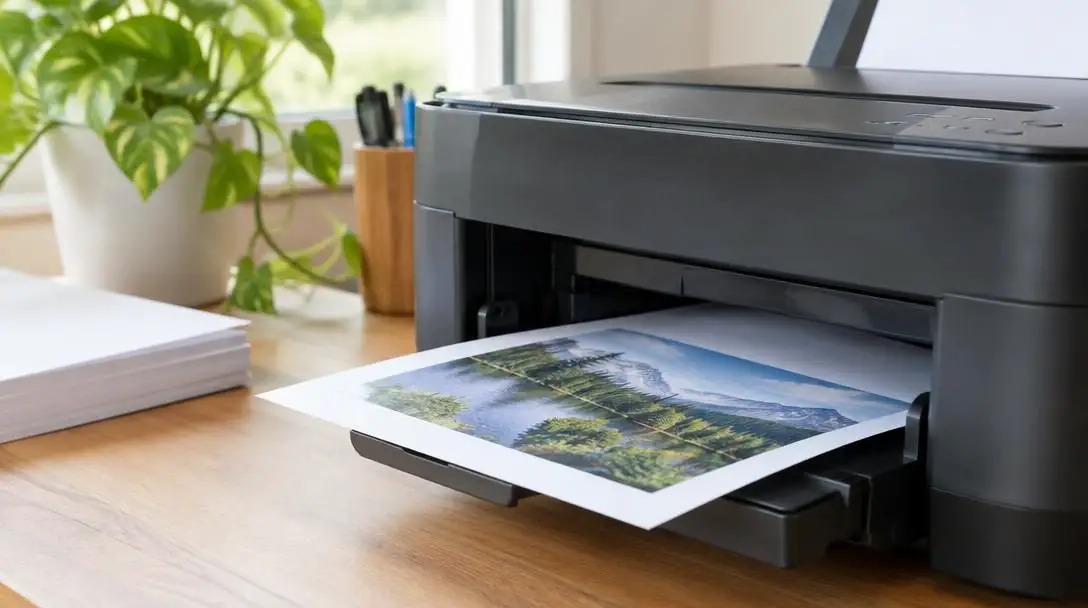
When producing documents that incorporate photographic elements, complex charts, or full-color visual aids, switching to a heavier-weight or coated glossy paper is essential. Applying dense layers of liquid ink onto standard bond causes the cellulose fibers to warp, buckle, and display dull, muted tones. Heavier stocks offer the physical rigidity necessary to absorb heavy fluid volume without deforming the page. Coated papers feature specialized surface treatments that keep color pigments locked near the top layer rather than sinking deep into the core. This surface holdout preserves crisp lines, deep contrast, and vivid color reproduction for final client deliverables, marketing materials, and visual portfolios.
Matching print settings to your document goals
Operating systems and modern print drivers offer versatile resolution profiles that control how hardware applies ink or toner. Many households leave their printer driver permanently configured to factory defaults, inadvertently burning through expensive cartridges for casual reading materials. Deliberately matching the print profile to the task at hand yields substantial financial savings.
Draft quality mode
Draft quality mode minimizes the amount of ink or toner deposited on the page, rendering characters with thin, functional lines. In an inkjet printer, this setting drastically speeds up carriage movement and reduces droplet volume; in a laser machine, it lowers toner transfer density. Draft mode is the ideal selection for preliminary editing, outlines, grocery lists, and quick reference printouts. While contrast is noticeably lighter, legibility remains intact, and the overall reduction in consumable consumption extends cartridge lifespans dramatically.
Normal quality mode
Normal quality mode balances sharp text definition against moderate supply consumption. It lays down sufficient colorant to generate solid blacks, crisp character serifs, and readable data tables without oversaturating the page. This mode is the optimal standard for everyday correspondence, academic homework assignments, business balance sheets, and formal letters. It offers crisp, legible edges suitable for sustained reading while keeping operating costs reasonable.
High quality mode
High quality mode directs the printer to slow its mechanical feed mechanisms, calibrate carriage passes for microscopic dot placement, and maximize native hardware resolution. In laser machines, this profile optimizes toner distribution for fine gradients and detailed line art. Because this setting consumes maximum ink and toner, it should be reserved exclusively for client presentations, portfolio samples, framing photographs, and high-stakes documents where visual impact is paramount.
| Print Quality Profile | Ink / Toner Consumption | Output Speed | Recommended Applications |
|---|---|---|---|
| Draft Quality | Minimal | Very Fast | Proofreading, temporary agendas, rough drafts, internal reference |
| Normal Quality | Moderate | Standard | General correspondence, school assignments, invoices, spreadsheets |
| High Quality | Maximum | Slow | Client presentations, marketing materials, photographic prints |
How to print double-sided to cut paper consumption
Duplex printing represents the most direct, immediate way to cut home paper usage by exactly fifty percent. Halving the physical volume of paper you consume not only reduces ream purchases but also saves physical filing space and lowers postage costs when mailing documents.
Modern printing software and hardware handle double-sided printing through two primary methods: automatic duplexing and manual duplexing.
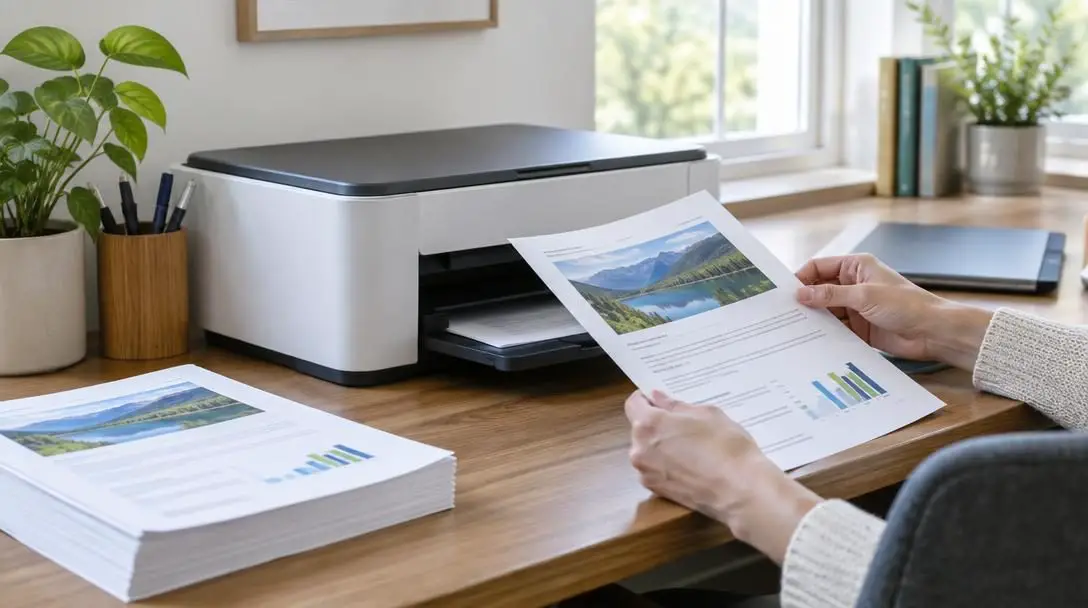
- Check hardware capabilities: Open your printer properties or system print dialog and verify whether your device supports automatic duplexing. If available, enable the double-sided option, select whether the document should flip along the long edge (standard portrait) or short edge (landscape or tablet binding), and send the job. The machine will pull the sheet back inside through an internal reversal mechanism to print the second side.
- Execute manual duplexing for standard printers: If your machine lacks an internal duplexer, access the print options and choose to print odd-numbered pages only. Send the job to print the first side of every sheet in your document stack.
- Inspect paper tray orientation icons: Examine the small feed markings on the input paper tray. These diagrams indicate whether the printer draws media face-up or face-down, as well as the required orientation of the top margin.
- Reload and print even pages: Take the printed stack of odd pages, orient the paper according to the tray markings so that the blank sides will receive the toner or ink right-side up, and place the sheets back into the feeder tray. In the print dialog, select even-numbered pages, ensure the reverse page order setting matches your machine's exit tray sequence, and complete the run.
Responsible disposal and cartridge recycling
Minimizing office waste extends beyond printing fewer sheets; it also involves how you handle retired supplies and discarded records. Standard consumer printer cartridges are manufactured from dense, high-grade polymers, electrical microchips, copper contact pads, and metal springs that resist natural decomposition in municipal landfills.
To keep hazardous residual chemical pigments and durable plastics out of landfills, leverage cartridge take-back programs:
- Manufacturer mail-back envelopes: Many major ink and toner brands package prepaid postage envelopes or shipping labels directly inside the box of replacement supplies. You can seal your depleted cartridge into the packaging and hand it to a postal carrier at no charge.
- Retail drop-off stations: Most commercial office supply retailers, consumer electronics chains, and community recycling depots operate dedicated collection bins near customer service desks for empty ink tanks and laser toner units.
- Municipal clean paper streams: For spent documentation, verify local curbside recycling guidelines. Keeping discarded paper clean, dry, and separated from domestic food containers ensures municipal sorting centers can break the stock down into usable secondary paper pulp.
Common home printing mistakes to avoid
Careless operational habits are responsible for a significant percentage of discarded pages, mechanical equipment failures, and wasted supplies. Avoiding these common procedural oversights protects both your hardware and your wallet.
- Bypassing print preview: Sending a file directly from a word processor or web browser without inspecting the print preview frequently leads to accidental waste. A single trailing footnote or stray line break can force the generation of an unnecessary, mostly blank final sheet. Reviewing the preview window lets you spot stray text, adjust margin boundaries, or manually select a custom page range.
- Neglecting low supply indicators: Pushing depleted cartridges to the absolute limit during extensive multi-page jobs often results in streaked, discolored, or unreadable final pages. Monitoring the graphical supply gauges provided by your device's desktop utility software allows you to swap out low supplies or stage replacements before starting long documents.
- Storing paper outside sealed packaging: Opening a ream of paper and leaving the unused stack exposed to the ambient atmosphere allows moisture to penetrate the edges, leading to curling and misfeeds. Keep unopened reams sealed in their factory moisture-barrier wrapper, and only load as many sheets into the tray as you plan to use in the near term.
- Overfilling the paper tray: Packing media past the maximum fill line on the input guide puts excessive pressure on the pick-up rollers. This frequently causes the intake system to pull multiple sheets simultaneously, leading to paper tears, feed motor stalls, and misaligned output.
- Ignoring calibration and cleaning cycles: When faint horizontal streaks or color imbalances begin appearing, continuing to print long documents merely produces stacks of defective pages. Running a diagnostic nozzle check or cleaning cycle early uses a fraction of the ink that would otherwise be wasted on rejected jobs.
Long-term home office optimization
Establishing sustainable printing practices involves examining your broader home administrative ecosystem. By evaluating how your household consumes physical records, you can choose hardware tailored to your realistic monthly volume.
If your home workflow consists almost entirely of black-and-white reading materials, financial spreadsheets, tax records, and text-based contracts, transitioning to a dedicated monochrome laser printer can lower your total cost per page significantly. Laser toner cartridges do not dry out during weeks of non-use, unlike the liquid print heads found in conventional inkjet printers, which can waste ink on cleaning routines when left idle. On the other hand, if your family frequently outputs creative school projects, detailed charts, or visual mockups, investing in an ink tank system—which uses high-capacity refillable liquid reservoirs rather than expensive disposable cartridges—can drastically reduce consumable expenses over the life of the machine.
Ultimately, the most effective way to eliminate printing waste is to adopt a digital-first documentation strategy. Using tablet computers for marking up rough drafts, reading long reference articles on external monitors, and applying electronic signatures to agreements eliminates the need to produce ephemeral paper copies. Restricting your physical printer to permanent archives, legal requirements, and essential client materials preserves resources and keeps your home office running cleanly.
Frequently asked questions
Why does text print blurry or feathered on my inkjet printer?
Blurry or feathered text typically occurs when you use paper with high absorbency and poor surface sizing, allowing liquid ink to spread across adjacent fibers before drying. It can also stem from misaligned print heads or clogged nozzles, which you can resolve by running the printer's internal calibration and head-cleaning utilities.
Is draft mode acceptable for printing homework or school projects?
Draft mode is ideal for preliminary outlines, initial reading drafts, and personal study notes. However, for completed homework assignments that must be submitted to instructors for evaluation, normal quality mode is generally recommended to ensure crisp character contrast and neat line presentation.
What should I do if my printer repeatedly pulls multiple sheets of paper at once?
Multi-sheet feeding is usually caused by overfilling the input tray, storing paper in a humid environment where sheets cling together, or worn feed rollers. Ensure the paper stack is well below the tray's maximum fill line, fan the stack gently before loading to introduce air between sheets, and store unprinted reams in a dry, sealed wrapper.
Can dry toner in a laser cartridge go bad if left unused for months?
Unlike liquid inkjet cartridges, which are prone to drying out and clogging delicate print nozzles if left idle, dry laser toner is composed of stable, pulverized plastic resin. As long as the cartridge is kept away from extreme heat and high humidity, it can sit idle for prolonged periods without degrading or drying up.
How can I prevent printing accidental blank pages at the end of web articles?
Always inspect the print preview screen before sending a print job from your browser or application. If an unwanted trailing page containing only footers or whitespace appears, use the custom page range field in your print dialog to specify only the exact pages you need.
The bottom line
Achieving high-quality prints at home does not require expensive, commercial-grade machinery or wasteful trial-and-error printing. By understanding the mechanical differences between liquid ink and dry toner, matching paper weight to the visual density of your content, and systematically configuring software settings for draft or duplex output, you can maintain pristine print standards while controlling your domestic budget. Thoughtful consumable maintenance and a digital-first approach ensure your home workspace remains productive, economical, and environmentally responsible.